Chapter 12 - Diagnostics
The Diagnostics panel is for the rare bad day: the device froze, restarted itself, or did something odd - and you want to know why, or you want Midicake support to know why. The device keeps records of its own trouble; this panel fetches them.
Everything here needs the Live connection (Chapter 5); the buttons stay disabled until you're Live.
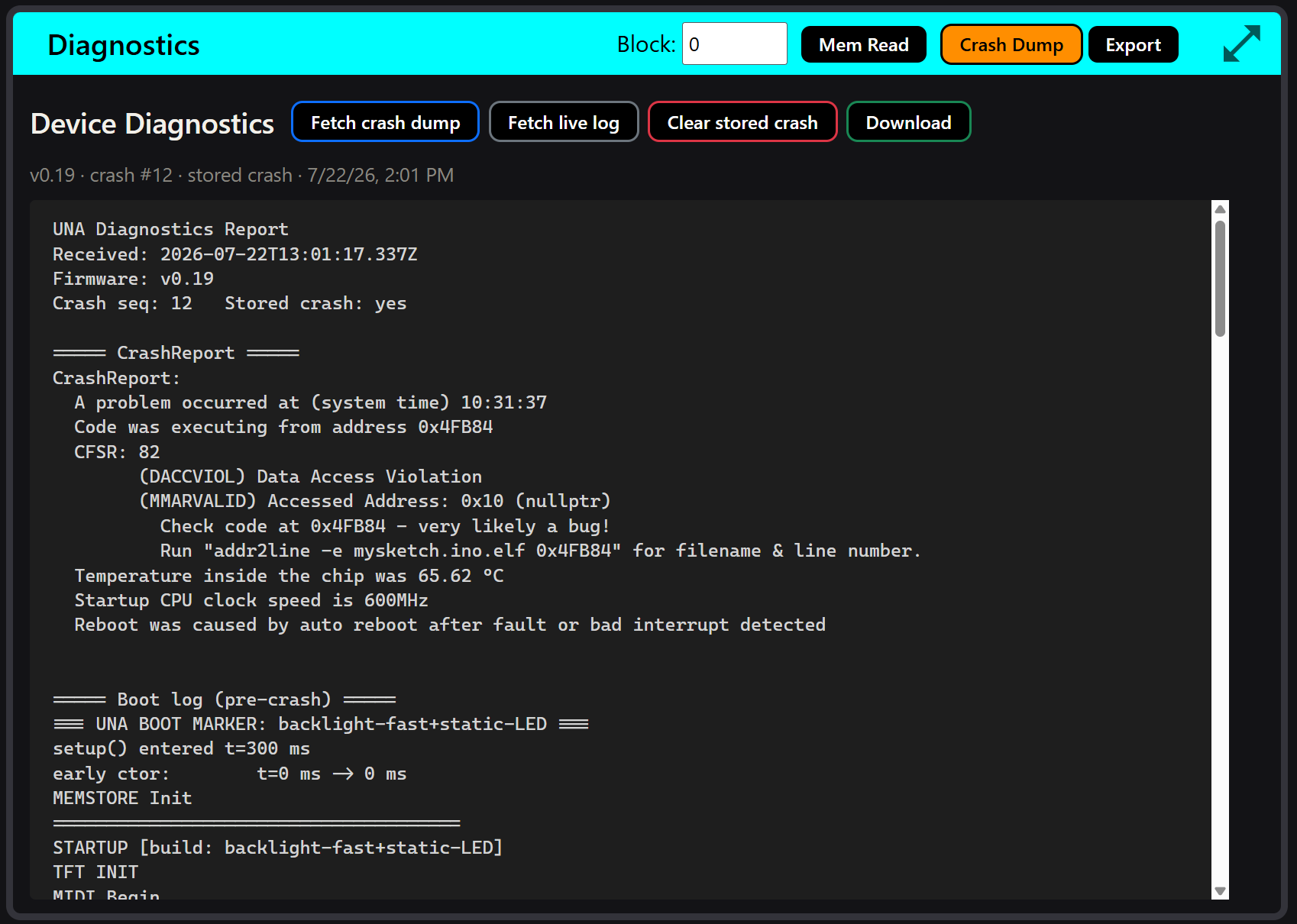
What the device remembers
When a Midicake crashes, the very next boot preserves a crash report - where in the firmware the fault happened, what kind of fault, and the boot log around it. It survives power cycles and waits until you collect it. The device also keeps a rolling live log of recent internal events, fetchable any time - useful when something is odd but hasn't actually crashed.
The buttons
- Fetch crash dump - pulls the stored crash report. The panel shows the essentials up front: firmware version, when it happened, a crash sequence number, and whether a stored crash exists at all. No stored crash is the healthy answer.
- Fetch live log - pulls the recent-events log without needing a crash.
- Download - saves everything fetched as a single text file, named and dated.
- Clear stored crash - wipes the stored report once you've collected it, so the next fetch answers cleanly about the next incident.
The screen mirror pauses briefly during a fetch, like any transfer.
When the device restarts by itself
A spontaneous restart is the device's fault handler doing its job - fault, capture, reboot. The report of what happened is already stored. Go Live, fetch the crash dump, download it, and send the file to midicake.com/support with a line about what you were doing at the time.
That file turns "it crashed sometime yesterday" into the exact firmware line that faulted - the difference between a shrug and a fix in the next release.
The routine: Fetch → Download → email support → Clear. Thirty seconds, and the evidence is preserved before anything can overwrite it.