Chapter 7 - Patch Data
The Patch Data panel is your window into what's on the device right now: every patch, every bank, and the global settings, readable and decoded. It's the left half of the patch workflow - the right half is your local library, the Patch Store (Chapter 8), and moving things between the two is how patches travel.
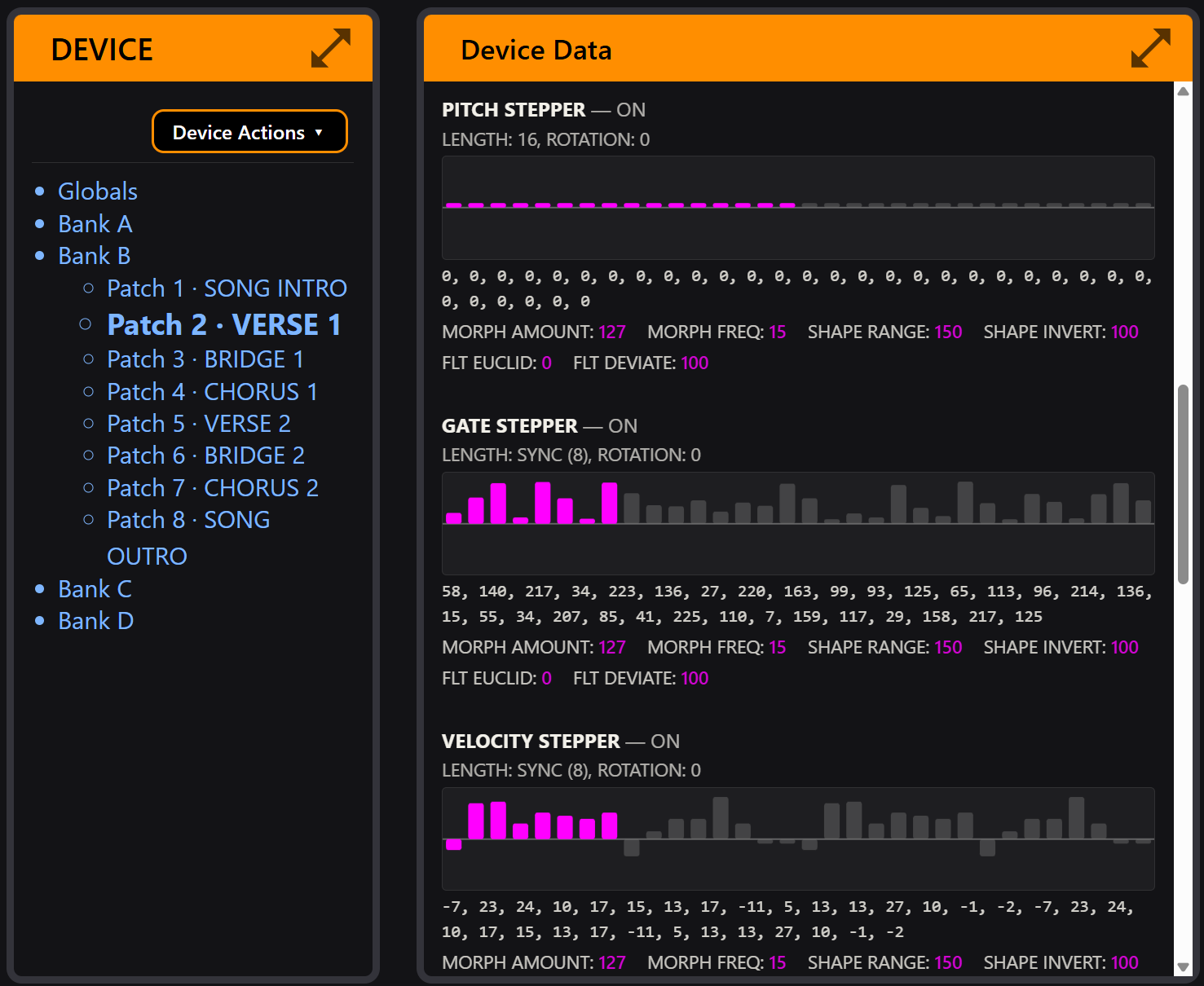
The device tree
The left column shows the device's contents as a tree:
- Globals - the device-wide settings unit.
- Banks - lettered A, B, C... built from what the device reports during Identify, so the tree always matches the connected hardware's real geometry.
- Patches - the slots inside each bank. Once a patch has been read, its name appears next to the slot.
Until you're Live, the panel shows a prompt instead - like the screen mirror, it needs the direct connection (Chapter 5).
Selecting anything in the tree - a patch, a bank, Globals - shows its contents in the viewer on the right.
Device Actions
The Device Actions dropdown at the top of the tree:
- Identify - re-runs the handshake: device type, firmware version, bank/patch geometry. Run it after a firmware update.
- Read - reads the currently selected unit (one patch, one bank header, or Globals) from the device.
- Read All - reads the entire device, unit by unit, with a progress bar. On UNA that's every patch in every bank plus the bank headers and Globals in one pass. Takes a little while; the screen mirror pauses during the transfer and resumes after.
- Backup Device - reads everything and files it in the Patch Store as a locked, provenance-stamped backup folder. This is the one-action safety net - the full story is in Chapter 8.
Read before you browse. The tree starts as slots and placeholders; the content arrives when you read it. Read All first, then browse freely - everything you click is already local.
The patch viewer
Select a read patch and the viewer decodes it into the same structure the instrument uses, spread across tabs:
- Chord / Melody / Bass - one tab per track, showing the parameter groups as the device organises them: primary and secondary parameters, locks, and the bass Improv settings on the Bass tab.
- Modulators - every modulator slot with its source, target and settings, including modulator step-sequence lanes.
Where a parameter is really a pattern, the viewer draws it rather than listing numbers:
- Stepper grids - the 32-step lanes rendered as grids, so a pitch sequence or gate pattern reads at a glance.
- Chord Rhythm - the rhythm drawn as a timeline.
- Chord Chain - the chain as a grid of links.
The viewer is read-only by design: parameters are edited on the instrument, where the knobs are. What CONNECT adds is legibility - seeing a whole patch at once, in a form you can compare and archive - plus the handful of things a keyboard genuinely does better: renaming, organising, and transfers.
The Globals view
Selecting Globals shows every device-wide setting, grouped as the device groups them. Two extras earn their place:
- Filter box - type to narrow the list to matching settings. The fastest way to answer "what's my clock set to?" without touching the device menu.
- Print Summary - exports the current view as a text file. Patch summaries have the same button - useful for documentation, or a plain-text record of a setup before you change it.
Transfers, briefly
With a patch selected you can Send to Store - copy it from the device into a folder in your library. The reverse trip, Send to Device, starts from the Patch Store side and is covered with its confirmations and safety guards in Chapter 8. Transfers pause the screen mirror momentarily; interrupting a read is harmless.