Chapter 10 - Routing
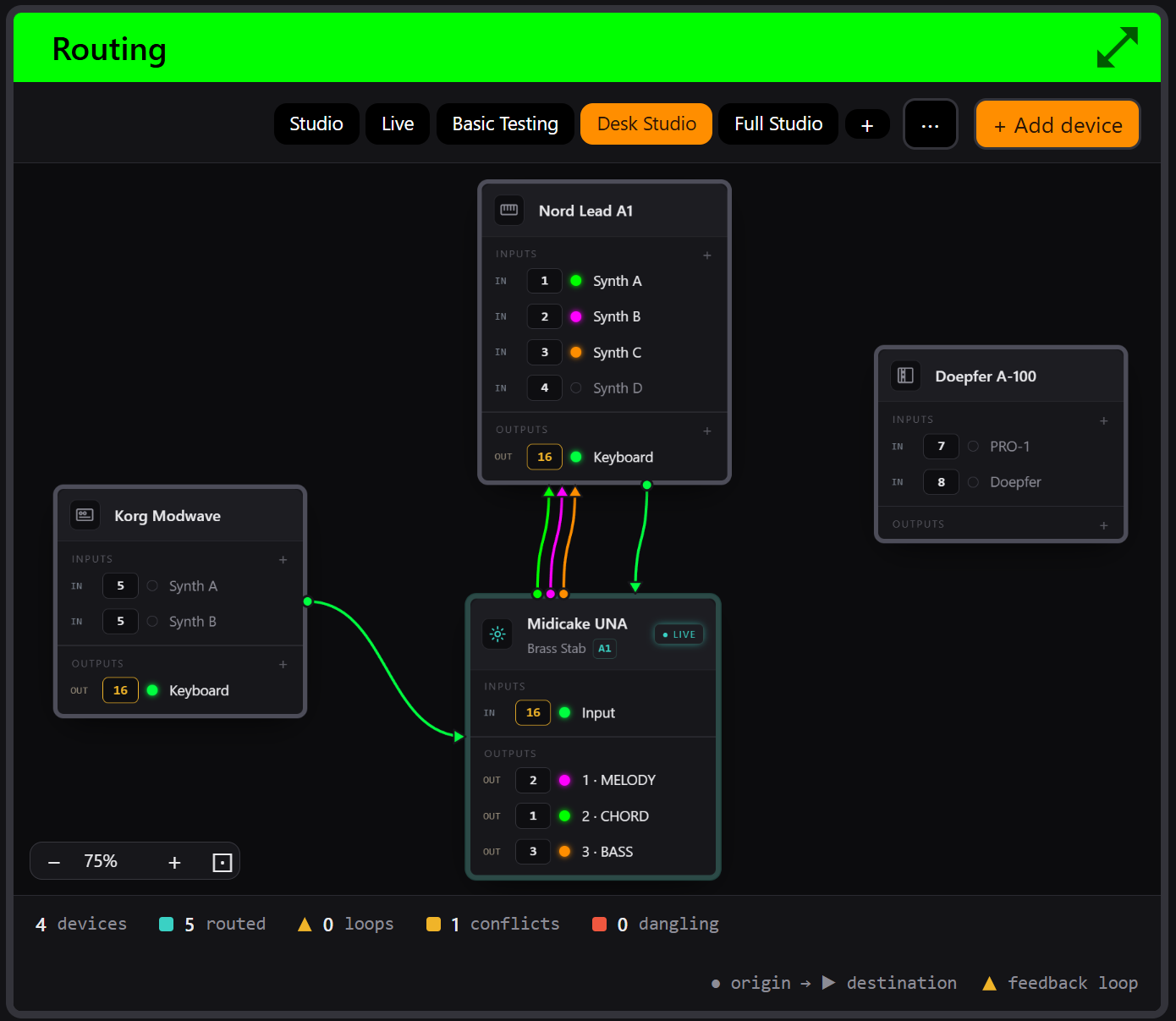
The Routing panel is a canvas for mapping your MIDI setup: every device drawn as a card, every MIDI connection drawn as a coloured wire. It answers the questions every hardware rig eventually asks - who's sending on channel 3? why is this synth playing two parts? where's the feedback loop? - by showing the whole picture at once.
The one idea that makes it work
You never draw wires. You tell each device which channels it sends on and which it listens to - and the wires draw themselves. Wherever an output channel matches an input channel, a wire appears, coloured by channel (the same palette as the Visualizer).
That inversion is the point. A wire you drag can lie - the classic out-of-date rig diagram. A wire that's derived from the channel numbers can't: if the picture shows a connection, the channel maths says it exists. Fix the channels and the picture fixes itself.
Devices and voices
Each card represents a device, with its voices - the channels it speaks on:
- Add device opens a dialog: name it, pick an icon, and start from a preset (Keyboard, Mono synth, Multitimbral, Rack, or Custom) that seeds sensible voices you then edit.
- Set a voice's channel by clicking it (a 4×4 grid picker, channels 1-16) or just scrolling over it.
- Flip direction - each voice is an input or an output; toggle as needed. Add and remove voices freely.
- Rename devices and voices inline.
- Arrange by dragging cards; pan the canvas by dragging the background, zoom with the wheel, and Fit brings everything back into view.
What the canvas flags
The status strip counts devices, routed connections - and problems:
- Dangling output (red) - a device transmits on a channel nothing listens to. Silent gear, found.
- Idle input - a device listens on a channel nothing sends. Usually fine; occasionally the reason "it's not responding".
- Conflict - two outputs on the same channel feeding one input. Sometimes intentional layering, often the answer to "why is it playing both parts?"
- Feedback loop (warning triangle) - a channel path that circles back to where it started. The classic MIDI hang, visible before it bites.
None of these block you - the canvas describes, you decide.
Rigs
The tabs across the top hold separate rigs - complete setups. Studio and Live come seeded as examples; make as many as you have configurations. Double-click a tab to rename; duplicate one as the starting point for a variant.
The ⋯ menu handles the files: Export rig and Import rig for one setup, Export backup and Restore backup for all of them. Imports always add - an imported rig never overwrites one you have, even with the same name.
Rigs live in the browser's local storage, same as the Patch Store - so the same rule applies: export what you'd mind losing (Chapter 14).
The live device card
Your Midicake's card is special. While Live (Chapter 5), it shows the channels streamed from the actual device - the real Input, Melody, Chord and Bass channel assignments, locked read-only, marked ● LIVE. The rest of the canvas is your description of your rig; that one card is the truth, direct from the hardware.
(The card has its own GO LIVE button, which is the same Live connection as everywhere else - a shortcut, not a second link.)
What Routing is not
It's a planning tool - a living diagram, not a MIDI router. It doesn't move or modify any MIDI; it can't, and that's deliberate. The value is that the diagram stays honest: because wires derive from channels, keeping the diagram current is the same act as keeping your channel plan current.