Basic Mode
UNA has two modes: BASIC and EXPERT.
BASIC turns UNA into a simple one-track arpeggiator. You play or build the chords, and UNA plays a melody made from their notes. The chord and bass tracks stay silent. The chords still decide which notes the melody can use; you just don't hear them as a separate part.
It is the same instrument with less on the panel: fewer screens, fewer buttons, and nothing that can change your EXPERT patches. When you want the whole band, switch to EXPERT - it is one screen away, and you can come back at any time.
Choosing BASIC or EXPERT
The SELECT MODE screen chooses between the two. You will see it:
- When you power UNA on, unless you have set a Startup Screen (see Skipping SELECT MODE at power-on, below).
- Whenever you want it: on Home, hold the CONTROL Knob and press MODE (button 3).
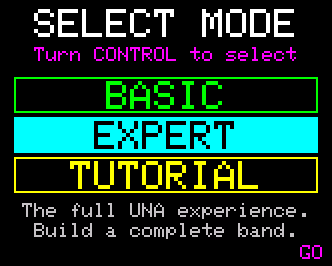
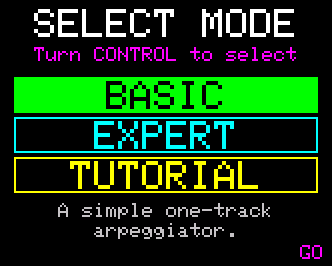
The screen has three rows:
- BASIC (green) - the simple one-track mode this page describes.
- EXPERT (cyan) - the full instrument.
-
TUTORIAL (yellow) - switches to BASIC and starts the guided walkthrough (Chapter 3).
-
Turn the CONTROL Knob to move between the rows. The selected row is filled in, and the text underneath describes it.
- Press GO (button 6).
The screen always opens on the mode you are already in, so pressing GO straight away changes nothing. That is also how you leave the screen without switching - there is no CANCEL.
Stop first. You can't switch modes while the sequencer is running. If it is, GO greys out, the screen says STOP THE SEQUENCER BEFORE SWITCHING, and STOP appears on button 4. Press it, then choose.
Skipping SELECT MODE at power-on
By default UNA shows SELECT MODE every time you power it on. To start straight in one mode, set Startup Screen in the Menu's CONFIG list (Settings) to BASIC or EXPERT. Set it back to SELECT MODE to see the screen again. Both BIOS resets also put it back to SELECT MODE.
Home in BASIC
| 1 | 2 | 3 | 4 | 5 | 6 | |
|---|---|---|---|---|---|---|
| EASY | CHORD | MELODY | KEYS | LISTEN | PLAY / STOP | UNA |
| COMMON (hold CONTROL) | TUTORIAL | - | MODE | - | - | HELP |
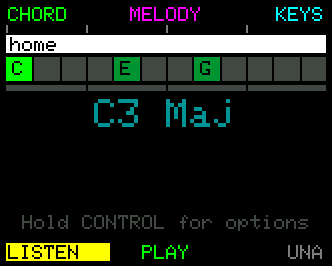
- CHORD - the chord you are on, and the way to the chord chain.
- MELODY - the melody's notes.
- KEYS - which part of your keyboard UNA listens to.
- LISTEN - lit while the notes you play set the chord. Turn it off to keep the current chord or progression and play freely over the top.
- PLAY / STOP - the transport, the same as everywhere else. Holding a chord still starts UNA on its own (Live Play, Chapter 5).
- MODE (hold CONTROL, button 3) - SELECT MODE.
The screen shows the note pool across the top, the chord chain under it (when it is on), and the chord you are hearing in large type. While the sequencer runs, the melody's notes rise up the screen behind it. The eight PARAMETER Knobs edit the melody.
The BASIC screens
CHORD
| 1 | 2 | 3 | 4 | 5 | 6 | |
|---|---|---|---|---|---|---|
| EASY | SUGGEST | CHAIN | - | LISTEN | PLAY / STOP | BACK |
This is Chord Mode (Chapter 8) without its Advanced Mode or SCALE:
- SUGGEST offers chords that follow the one you are on.
- CHAIN opens the chord chain.
- LISTEN sits on button 4, where EXPERT has SELECT. (SELECT is still there, inside SUGGEST.)
- The eight PARAMETER Knob presses are eight chords to try, and pressing and turning the CONTROL Knob walks through the chords of the key.
CHORD CHAIN
| 1 | 2 | 3 | 4 | 5 | 6 | |
|---|---|---|---|---|---|---|
| EASY | REPLACE | ON / OFF | UNDO | CAPTURE | PLAY / STOP | BACK |
The progression that drives the harmony.
- REPLACE swaps the chord under the cursor: play a new one, or pick one with SUGGEST or SELECT. It is greyed on the + at the end of the chain.
- ON / OFF switches the chain in or out. It is OFF each time you go into BASIC, and switching it on lasts for that visit - EXPERT keeps its own setting.
- CAPTURE records a progression from your keyboard.
- Turn the CONTROL Knob to move the cursor. Press and turn walks the chord under the cursor through the key.
- On the +, pressing and turning right adds links. The footer reads TURN TO ADD.
- On the last link, press and turn left, and keep turning to remove it. The first turn marks it TURN TO DELETE, and the second removes it.
The chain browser (SUGGEST on the EXPERT screen) and Advanced Mode's editing tools are not part of BASIC.
MELODY
| 1 | 2 | 3 | 4 | 5 | 6 | |
|---|---|---|---|---|---|---|
| EASY | SUGGEST | PITCH | UNDO | CAPTURE | PLAY / STOP | BACK |
In BASIC the melody is one lane: PITCH. Each step picks which note of the chord plays, so the shape you draw here is the arpeggio. The other lanes (gate, velocity and the rest) stay at their plain settings.
- SUGGEST browses FACTORY patterns or GENERATEs one, with live preview; APPLY keeps it and CANCEL puts back what you had. It always opens on FACTORY. (Your saved USER patterns are an EXPERT feature.)
- PITCH is shown greyed: the lane can't be changed in BASIC.
- CAPTURE records a phrase from your keyboard. The capture options for velocity, gate and delay are shown greyed and reading OFF - BASIC captures notes and rests only.
- The step editing gestures are the same as EXPERT's (Chapter 9).
KEYS
| 1 | 2 | 3 | 4 | 5 | 6 | |
|---|---|---|---|---|---|---|
| EASY | CLEAR | CHANNEL | SIDE | LISTEN | PLAY / STOP | BACK |
Split your keyboard so one half plays UNA and the other half is free.
- Play a note, or turn the CONTROL Knob (press and turn for single notes), to set the split point. The screen reminds you: Play a note to Split.
- CLEAR turns the split off (the screen reads NO SPLIT), and SIDE swaps which half is UNA's.
- CHANNEL is the MIDI channel UNA listens on: tap for the next one, or hold it and turn the CONTROL Knob.
- BACK keeps what you set. There is no CANCEL in BASIC.
What BASIC leaves out
These are all still in UNA - switch to EXPERT to use them:
- The chord and bass tracks' sound. The chords still steer the melody.
- Tracks, Mixer, Patches, Modulate and Performance Mode.
- Advanced Mode on every screen: a tap of the CONTROL Knob does nothing in BASIC.
- MENU and NAV on the COMMON row.
- Patch Chains: always off in BASIC, so a patch chain never switches the patch.
- Control of UNA from MIDI CC messages, and incoming Program Change. A sustain pedal (CC64) still works.
Tutorial Mode walks through BASIC - choose TUTORIAL on SELECT MODE.
The BASIC patch
BASIC plays its own patch, kept separately from your 64 EXPERT patches:
- Nothing you do in BASIC changes an EXPERT patch. Switch to EXPERT and you are back on the patch you left, exactly as it was.
- Your BASIC edits are saved as you make them, and are still there the next time you choose BASIC or power on.
- A factory reset puts the BASIC patch back to its starting point: a simple rising arpeggio.
- The BASIC patch is not included in a CONNECT backup.
What's next
When BASIC feels small, press MODE, turn to EXPERT and press GO. Chapter 6 covers the full Home screen, and Chapter 5 explains how the three tracks fit together.