Chapter 14 - Patches & Banks
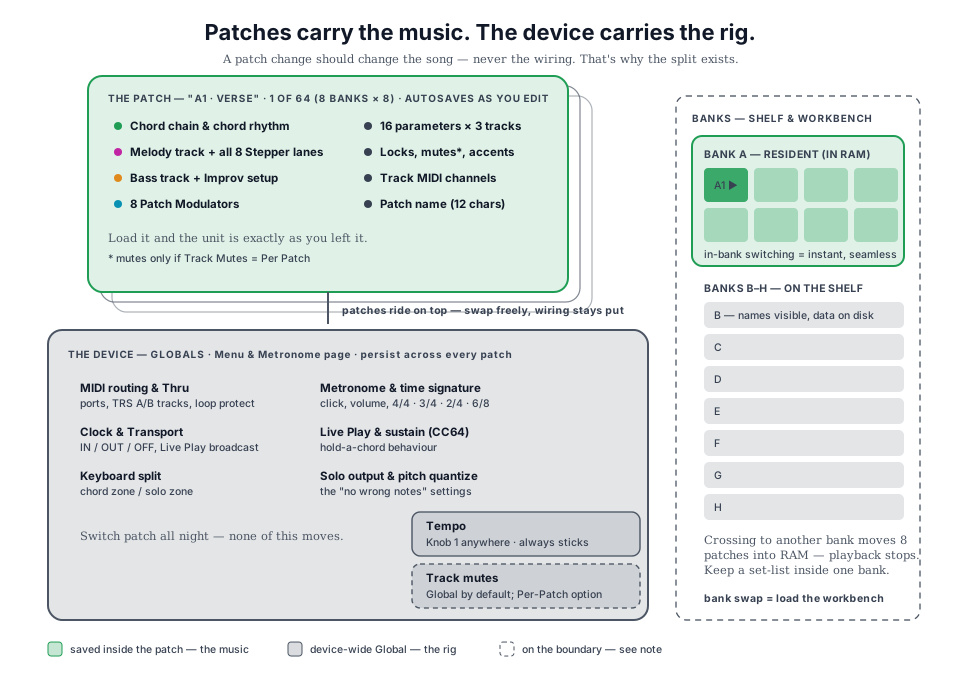
A patch is a complete snapshot of everything you've built - the chord chain, the rhythms, the captured melody, the bass line, every track parameter, every Stepper lane, every Modulator. Load a patch and the unit is exactly as it was when you left it.
Switch to another patch within the same bank mid-performance and UNA crosses over without losing its place in the bar. This chapter covers what a patch contains, where it lives, and how to organise the patches you build into a library you can play from on stage.
What's in a patch
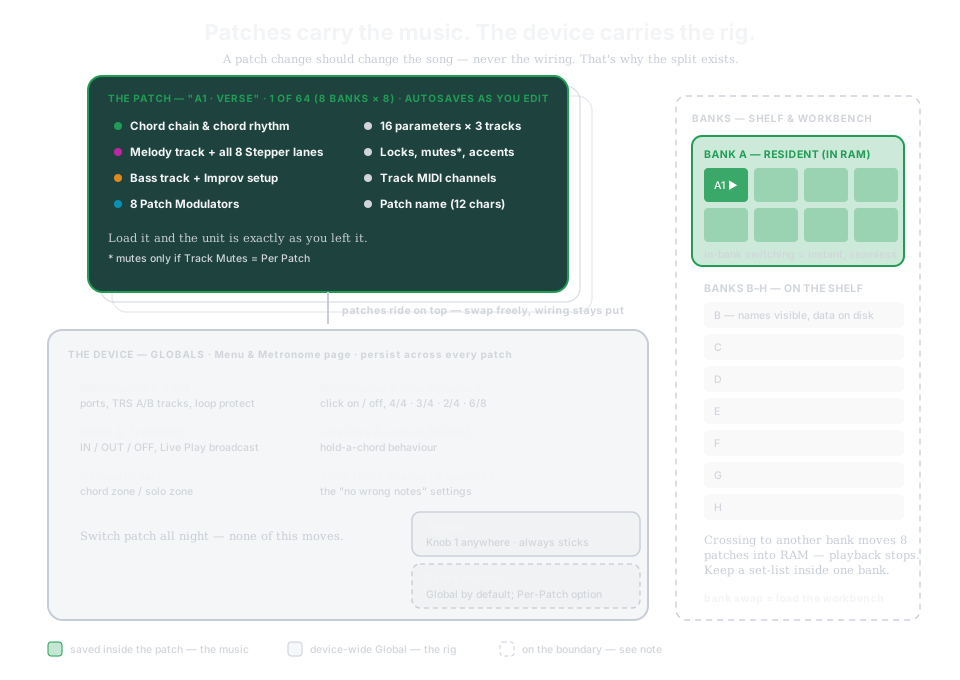
A patch holds everything that makes the music this music:
- The chord chain - your captured progression.
- The chord rhythm - the pattern that delivers the Chord Track.
- The Melody Track - every step's pitch, gate, velocity, and per-step parameters, plus all 16 Melody parameters.
- The Bass Track - its captured or generated bassline, plus all 16 Bass parameters and the full Improv configuration.
- All patch Modulation slots - each one's type, target, and timing settings.
- All Stepper lanes for Melody.
- Track mute state - but only if you've switched Menu > CONFIG > Track Mutes to Per Patch. By default mutes are device-wide and live outside the patch (Chapter 17).
- The patch name - up to 12 characters.
- The MIDI Channels - but only if you've switched Menu > CONFIG > Track Channels to Per Patch. By default the three channels are device-wide and live outside the patch (Chapter 17).
A patch does not include:
- MIDI routing - port enables, Thru behaviour. Those are Globals.
- Keyboard split - also a Global.
- Tempo - UNA's tempo is a single device-wide value that persists across patches.
- Clock and transport, Live Play, and the metronome - time signature and click. All Globals.
- Track mutes - by default. Set Menu > CONFIG > Track Mutes to Per Patch if you'd rather each patch remember its own (Chapter 17).
- Track channels - by default. Set Menu > CONFIG > Track Channels to Per Patch if you'd rather each patch remember its own (Chapter 17).
This split is intentional. The patches you switch between mid-set should change the music, not the wiring. If you have your MIDI rig set up so Out A goes to your synth and Out B goes to a drum machine, you don't want a patch change re-routing your cables. Globals stay put; patches move freely on top.
Banks and slots
UNA stores patches in banks of 8. Banks are named by letter - A through H - and each holds 8 patch slots numbered 1-8, giving 64 patches in all. So a patch is always addressed by bank-and-slot: A1 is the first patch in Bank A, C5 is the fifth patch in Bank C, and so on.
Banks are folders. Use them however makes sense to you - by song, by set, by project, by instrument; they're just a way to organise your library.
Resident and browsed banks
UNA holds one bank in RAM at a time - the "resident" bank. When you're playing, you're playing patches from the resident bank; when you switch between patches within it, the swap is instant.
When you look at another bank, you're browsing it - UNA still knows all the patch names in every bank (they're read on boot), but the patch data only comes into RAM when you commit to a bank switch. This is why:
- Loading a patch within the resident bank is instant.
- Loading a patch from a different bank stops playback, loads the new bank into RAM, then loads the patch. UNA warns you before doing this.
So the mental model is: banks are your storage; the resident bank is what's on your workbench.
The factory patches
UNA ships with all eight banks full - 64 patches, each one different. Banks A to D are the best of every UNA collection, gathered into four banks named after Emerson's poem Una. Because they were drawn from all over, the banks are grouped by what a patch does, not what key it is in: A - Clouded Dreams is a showcase tour and the place to start, B - Half Seen is cycles that refuse to line up, C - Glowing Rail is long-form pieces that travel and return, and D - Inward Sky pushes light to both ends. They are demonstrations and starting positions: each shows a different side of UNA's sequencing, and each is built to be pulled apart. A factory reset (Chapter 17) reinstalls all 64.
The default patches introduces the banks. Each patch's own description - what it does, how it evolves, and what to plug in - lives with the patch in CONNECT's Patch Store. What follows here is only what they have in common.
All 32 follow the same convention: every track - Chords, Melody and Bass - sends on MIDI Channel 1. Connect a single polysynth, electric piano, or any keyboard sound to UNA's MIDI out, set it to Channel 1, press Play, and every patch speaks through that one instrument. To keep three tracks legible on one sound, the dynamics and registers are deliberately spread: chords sit soft in the middle, the bass strong below, the melody brighter on top. (They were designed at the default 120 BPM - tempo is a Global, so it stays wherever you set it.)
Every patch also carries its own chord chain, already running, and a set of Modulators. Nearly every patch ships with some modulators already on, because these patches are meant to move on their own from the first bar. The slots that are left are pre-configured but switched off, waiting for you: open Modulate (Chapter 12), enable one, and something definite happens - a swell, a register jump, a bass that starts improvising. Enable them one at a time and listen; disable them and the patch returns to its plainer self.
One patch is the exception. B1 GLASS STAIRS ships with all eight slots configured but every one switched off - the clearest place to hear what a single modulator does to a patch that is otherwise standing still.
Where a patch configures slot 6, it is nearly always aimed at Bass Improv Variability. In the straighter patches it wakes the bass up; in the jazz patches it pushes an already-improvising bass further out.
Any patch can be overwritten - they are ordinary patches in ordinary slots. Copy one to a free slot before you dig in if you want to keep the original (Copying a patch), or get them all back with a factory reset.
Autosave - you never have to think about saving
UNA autosaves. Every parameter you change, every chord you record, every melody you capture is written to the current patch as you go. You don't have to remember a save gesture; you don't have to confirm before powering off. If you make an edit, it's saved.
Three practical consequences:
- The patch you're on is always the current state of the unit. Power-cycle UNA and it comes back exactly as you left it.
- If you don't want to keep edits, copy the patch first. Make a copy into a fresh slot, then experiment in the copy. The original stays untouched.
- There is an undo, and it is REVERT. Autosave means the patch on disk is the patch you are playing, so there is no general "undo my last edit". What there is, is a snapshot of every patch as it was when the bank loaded: PATCHES > SUGGEST > REVERT puts a patch back to that point, however much you have changed it since. For a longer safety net, copy the patch into a spare slot before you start, or engage Performance Lock (below) so nothing is written at all. (Per-screen UNDO, on CHORD, RHYTHM, MELODY, BASS and the patch chain, covers the last sixteen edits while you are still on that screen.)
Performing without autosave - Performance Lock
If you are playing live and want to move parameters, load patches and generally push the unit around without any of it reaching your saved patches, turn on Performance Lock.
Open the Menu, press BIOS (Chapter 17), select PERF LOCK and press ENABLE. UNA asks once, then the row reads PERF LOCK ON and a small padlock appears at the right of the breadcrumb bar on every screen.
From that moment nothing is written to storage. You can change any parameter, load any patch, switch banks, record, and none of it survives a power cycle - UNA comes back exactly as it was before you engaged the lock, down to which patch and bank were selected.
Two whole-patch actions are greyed out while the lock is on: COPY on the PATCHES Advanced Mode, and APPLY on the patch-reset list (SUGGEST). Each would overwrite an entire patch that the lock would then quietly throw away at power-off, so UNA refuses them rather than let them half-work. Saving a patch as the reset TEMPLATE still works under the lock.
Performance Lock cannot be switched off
There is no way to release it except by restarting UNA, so it can't be knocked off by accident mid-set. Anything you want to keep, save before you engage it.
Two things still write, because they do not go through autosave at all: the BIOS resets (soft and factory), and saving a reset template. Both are explicit, deliberate actions. Edits you made before engaging the lock are not thrown away either - they were already on their way to storage and they land normally.
The copy and reset mechanisms are covered below.
Patch Load - the grid browser
UNA's patch browser is reached from Home by pressing PATCHES (button 4). This drops you into Patch Load. (It is also on the NAV screen - hold CONTROL and press NAV, button 5 - from any screen.)
What's on the screen
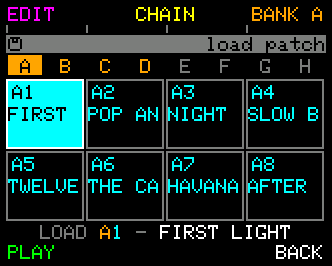
Along the very top is the patch-chain strip - the whole chain drawn to scale. It is always there: yellow while the chain is in the music, grey while it is switched out. Below it is the bank row, and below that the grid.
The display shows a 4×2 grid of the 8 patches in the current bank. Each cell shows:
- The patch's tag - the bank letter and slot number (e.g. A1, A2 … A8).
- The patch's name, truncated to fit the cell.
Two visual cues:
- The currently-loaded patch (the one playing) is drawn in cyan.
- The selected patch has a white border.
Selecting a patch
Two ways to move the selection around the grid:
- Rotate the CONTROL Knob - walks the 8 patches.
- Press a PARAMETER Knob (1-8) - jumps directly to that knob's associated patch.
The controls
| Function | What it does |
|---|---|
| SUGGEST | Reset the highlighted patch - start it over from the init patch, the factory patch, the state it was in when the bank loaded (revert), or your own saved template. See Resetting a patch below. Disabled while browsing a non-resident bank. |
| CHAIN | Opens Patch Chain mode; allowing you to automate patch changes and create song arrangements. See below. Disabled while browsing a non-resident bank. |
| BANK A (the letter shows the current browsed bank) | Press to step to the next bank, A → B → … → H → A. Hold it and rotate the CONTROL Knob to sweep instead. Details below. |
| PLAY / STOP | The transport. Stays live throughout Patch Load. |
| APPLY | Load the highlighted patch. Blank if the highlighted patch is already the active one. |
| CANCEL | Leave Patch Load without loading. |
Renaming, copying and the chain toggle are on the Advanced Mode - tap the CONTROL Knob. See Patch tools below. Resetting a patch has its own screen - see Resetting a patch.
Loading a patch
Three flavours of load, chosen by what you press:
- Same-bank APPLY - press APPLY with a patch highlighted in the resident bank.
-
UNA swaps to the new patch instantly, preserving playback position. The new patch enters at the same step/bar the old one was on, so the audience hears a clean crossover rather than a restart.
-
Cross-bank APPLY - press APPLY with a patch highlighted in a different bank. UNA shows a confirmation screen:
- Cross-bank loads are heavier: the whole 8-patch bank has to move into RAM, and the sequencer has to stop while that happens.
- Press YES to commit - UNA stops playback, shows a "Loading Bank B" progress bar as the 8 patches load, then loads the patch you picked.
- Press NO to abort without loading anything.
Quick Load shortcut
Hold the CONTROL Knob and quick press a PARAMETER Knob (1-8)
UNA loads that patch instantly, no APPLY needed, and can be use as a performance tool. Try creating some related patches and triggering them while the sequencer is running.
(Note. This gesture works only within the resident bank).
Switching banks
Press BANK to step the browsed bank on one place: A -> B -> ... -> H -> A. The grid, the bank row and the patch tags all follow it. Hold BANK and rotate the CONTROL Knob to sweep through the banks instead; that one stops at A and H rather than wrapping.
Browsing another bank is a name-only preview - nothing is loaded until you press APPLY - so you can look around all eight banks and leave without changing anything.
- To commit to the new bank, press APPLY with a patch selected in it. UNA shows the cross-bank confirmation above.
- To go back where you started, keep pressing BANK until you are on your own bank again.
The CONTROL Knob always selects patches, on every bank. The patch tools (NAME, CHAIN, COPY) grey out while a bank other than the loaded one is showing - they act on the patches that are actually in memory.
Patch tools - Advanced Mode
Tap the CONTROL Knob on Patch Load. The buttons change to the four things you can do to a patch, and the red knob bars name the eight patch tags - because the knobs still pick the cells here. This and Chord Mode are the two screens where the knobs keep their normal job on the Advanced Mode, and both for the same reason: on each of them the knobs are the eight things you are choosing between, so you should not have to leave the layer to make the choice.
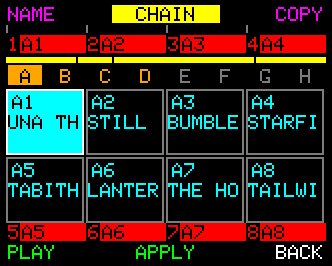
| Function | What it does |
|---|---|
| NAME | Open the 12-character name editor for the selected patch. |
| CHAIN | Put the patch chain in the music, or take it out. Lit when engaged. |
| COPY | Copy the selected patch over another slot in this bank - or save it as your reset template. |
| PLAY / STOP | The transport, in the same place as on Easy Mode. |
| APPLY | Load the patch you picked, exactly as on Easy Mode. Blank when the selection already is the loaded patch. |
| BACK | Return to Easy Mode. |
Patches is the one screen whose bottom-right three do not change with the layer, so tapping the CONTROL Knob only changes buttons 1-3 and the transport never moves under your thumb.
Tap the CONTROL Knob again, or press BACK, to return.
Resetting a patch - initialize, factory, revert, template
Press SUGGEST on Easy Mode to open the reset screen. It offers four sources for the slot you have selected: turn the CONTROL Knob to move down the list, then press APPLY.
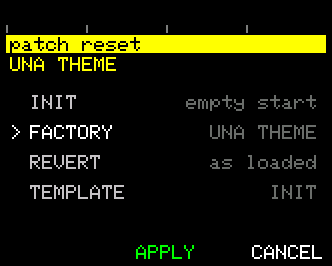
| Source | What it installs | The name |
|---|---|---|
| INIT | The init patch - UNA's empty starting point. This is the "initialize patch" you reach for when you want a blank page. | Reset to the slot's default, e.g. "PATCH A1". |
| FACTORY | The patch UNA shipped in that slot. | Replaced by the shipped name. |
| REVERT | The patch exactly as it was when the bank was loaded - your undo for a session of edits. | Restored with the patch. |
| TEMPLATE | Your own saved starting patch (see below). | Reset to the slot's default, e.g. "PATCH A1". |
The right-hand column tells you what each source would install - the factory patch's name, your template's name, "as loaded" for revert - so you can see what you are choosing before you choose it.
INIT and TEMPLATE also rename the slot to its default - "PATCH A1", "PATCH C4" and so on - so a patch you have just cleared out reads as empty rather than keeping a name that no longer describes it. FACTORY and REVERT bring their own names back with them.
Nothing changes until you press APPLY. Scrolling the list is completely safe: your patch is not touched, not even in memory, so you can open this screen mid-song and read your options without a sound changing. CANCEL leaves without doing anything, and so does leaving the screen any other way.
Resetting a patch keeps your parameter locks. A locked knob stays locked.
SUGGEST is greyed out while you are browsing a bank other than the loaded one - that patch is not in memory, so there is nothing to reset.
Saving your own template
The template is your own starting patch - whatever you like to begin from, rather than UNA's empty init patch.
Set a patch up the way you want it, then tap the CONTROL Knob for the tools, press COPY, and press TEMPLATE. UNA names the patch it is about to save and asks before it overwrites, because a template cannot be un-saved. From then on TEMPLATE installs that patch into any slot you point it at.
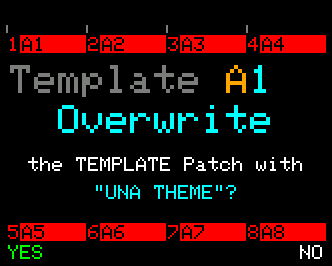
It is on the copy screen because saving a template is a kind of copy - you are copying the patch into the template slot instead of into another patch.
A factory reset returns the template to the init patch. A soft reset leaves it alone.
Copying a patch
Press COPY on Advanced Mode.
-
Rotate CONTROL to pick the target slot in the current bank. As you scroll, the header updates to show the target's tag and name.
-
Press APPLY. UNA shows an overwrite confirmation:
- Press YES to commit. (Takes a moment).
- Press NO to back out.
After copying: the source patch is unchanged, the target slot now holds a duplicate.
If you copied over the currently-loaded patch, UNA reloads it live so you hear the new content.
The copy screen also carries TEMPLATE, which saves the patch you are copying from as your reset template rather than copying it into another slot - see Saving your own template above.
Copy is within-bank only - you can only pick a target among the 8 slots of the resident bank.
To move a patch across banks, use Midicake CONNECT (see the Backup section below) to export it and re-import it into the target bank.
Renaming a patch
Tap the CONTROL Knob on Patch Load, then press NAME to open the 12-character name editor.
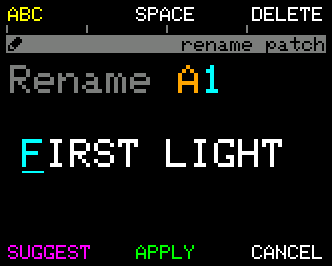
Moving the cursor and changing letters
- CONTROL Knob rotate - move the cursor left or right between the 12 character positions.
- CONTROL Knob press-and-rotate - change the letter at the current cursor position. Rotate up the alphabet (or down) within the active character set.
The controls
| Function | What it does |
|---|---|
| ABC / abc / 123 / *#! | Cycles the active character set. Quick press to toggle (see below) |
| SPACE | Replaces the current character with a space. |
| DELETE | Removes the current character |
| SUGGEST | Replaces the name with a randomly generated one. Press again for another. |
| APPLY | Commits the new name and returns to Patch Load. |
| CANCEL | Discards the name change and returns to Patch Load. |
The character sets
| Set | Characters |
|---|---|
| ABC | A-Z |
| abc | a-z |
| 123 | 0-9 |
| *#! | ' ! ? . , : ; + - * = ( ) [ ] < > # @ { } |
Patch Name Suggest
Stuck for a name? Press SUGGEST and UNA invents one for you.
Each press replaces the name entirely with a fresh, randomly generated name. Keep pressing until something sticks.
Patch Name Reset
If you press SAVE with the entire name blank (all spaces), UNA reverts to the default name for the slot. e.g. "Patch A1"
Patch chains - sequencing your patches
A patch chain is the patch-level parallel of the chord chain. Where a chord chain steps through a progression of chords over time, a patch chain steps through a progression of patches - automatically switching the resident patch as each link's duration elapses.
Build one and UNA can choreograph a whole set on its own: verse patch for two bars, chorus patch for two bars, bridge patch for four, looping round.
A chain is a list of links. Each link holds two things:
- the patch number: 1-8, from the current bank
- the duration: how long to hold it before moving on (from a quarter-bar up to many bars).
A patch chain belongs to the bank, not to a patch. So each bank has one patch chain, and it can only point at that bank's own 8 patches. Switch banks and you get that bank's chain.
Because a chain only references patches within one bank, the same in-bank crossover applies: each switch keeps the playback position.
Building a chain
From the Patches mode, press CHAIN.
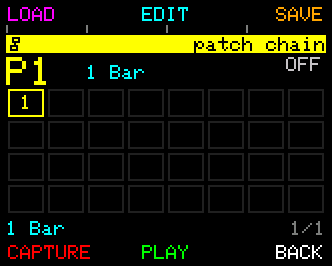
The body is three views of the same chain, stacked. Each one answers a different question, and each is anchored to a different thing - which is why you never have to choose between seeing where the music is and seeing what you are working on.
The strip at the top says WHERE. It is the whole chain, every link drawn to its real duration and filling the width, and it never moves. Yellow while the chain is in the music, grey while it is switched out. A cyan line runs through it at the point the music has reached, and a fine rule above it marks the slice of the chain the bottom row is showing. When the rows below have scrolled somewhere else, this is what still tells you where in the chain you are.
The belt in the middle says WHEN. The chain laid out along time, scrolling leftwards under a fixed playhead, so the wider a tile, the longer that patch holds - a two-bar link is visibly longer than a one-bar link. The tile that is playing stands full height; a bar-and-quarter ruler hangs underneath, so you can count a link's length without reading it.
A chain repeats, so the belt shows the laps on either side of the one you are in - dimmed to grey, because they are the same links coming round again rather than more chain. Between them is the seam, a bright-capped line in a wide gap where the chain restarts. The gap is deliberately wider than the ones between links, so you can tell the end of the chain from the end of a link, and so you can see the restart coming.
When you stop, the belt returns to the start of the chain.
Tile widths are relative, not to scale. A four-bar link reads wider than a one-bar link, but not four times wider - at true scale one long link would fill the screen and you would see nothing else. The ruler is drawn per tile for the same reason: each tile carries its own bars, so it is the density of the ticks that tells you a tile is compressed.
The row of even cells says WHICH, and it is the one you edit in. It shows nine cells at a time and follows your cursor rather than the music, with a small chevron in the margin when there is more chain that way. The cells are all the same width on purpose: proportion is already told twice above, and an even cell always has room for the patch tag.
The last cell is a dim + whenever the chain is shorter than 32 links, and the footer reads TURN TO ADD while the cursor is on it. It is where a chain grows: walk onto it and press and rotate the CONTROL Knob right, and a link appears with the + moving along past it. That is the same gesture that picks a patch anywhere else on the row, and it goes on picking the new link's patch as you keep turning.
It shrinks the same way. Rotate the last link's patch back down to patch 1 and keep going: the first detent past patch 1 marks the link - it greys out and the footer reads TURN TO DELETE - and the next one removes it, uncovering the + again. Anything else in between calls it off, so one stray turn never costs you a link. The last remaining link is never taken: a chain always has at least one.
Between the strip and the belt, the head answers one question - what am I hearing - with the playing patch's name on the left and its tag on the right, behind a small play mark. With the sequencer stopped there is nothing being heard, so both fall back to the link under the cursor.
Along the bottom, three things: the position in the chain on the left, the selected patch's name greyed in the middle, and the selected link's length on the right. The selected patch is the quiet one deliberately - while the chain is playing the head is naming a different patch, and the loud slot belongs to the one you can actually hear.
| SUGGEST | ON / OFF | UNDO |
| CAPTURE | PLAY / STOP | BACK |
-
Rotate the CONTROL Knob to walk the chain, whether or not it is playing.
-
Press and rotate the CONTROL Knob to change the patch on the link you are looking at.
-
Press ON / OFF to put the chain in the music or take it out. The button lights while it is engaged, and the strip above turns yellow with it. Loading a patch by hand also turns it off.
-
PLAY / STOP is the transport, right here - you do not have to leave to hear the chain run. While the sequencer is running the selection follows playback, so you can watch the chain move; the moment you rotate the CONTROL Knob it is yours again for the rest of the visit.
-
UNDO steps back through the last sixteen things you did on this screen - including a whole browse or a whole capture. REDO is one grip away: hold the CONTROL Knob and press button 3.
-
Tap the CONTROL Knob for Advanced Mode, where the editing lives (below).
Editing a chain - Advanced Mode
Tap the CONTROL Knob.
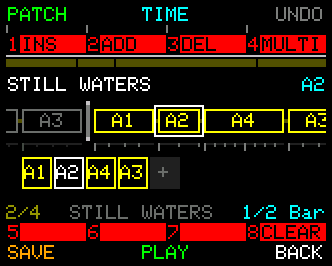
If you have edited a chord chain (Chapter 8), this will feel familiar: both chains are now edited in place, on the screen that shows them, while they play.
Nothing stops or freezes to let you do it. The belt goes on following the music and the selector goes on holding your cursor, because they are two different rows - that is the whole reason there are three. The layer only shortens the belt a little, to make room for the knob bar.
| Function | What it does |
|---|---|
| PATCH | Press to step the selected link's patch; hold it and rotate the CONTROL Knob to sweep. |
| TIME | The same, for the link's duration. |
| UNDO | As on Easy Mode. |
| SAVE | Store the chain to one of your sixteen slots (below). |
| PLAY / STOP | The transport, as on Easy Mode. |
| BACK | Return to Easy Mode. |
The eight knobs carry the structural edits:
| Knob | What it does |
|---|---|
| 1 INS | Insert a new link before the one you are on. Greyed on a full 32-link chain. |
| 2 ADD | Add a new link at the end of the chain. Greyed on a full chain. |
| 3 DEL | Delete the link you are on. Greyed on a chain of one - there is always a link. |
| 4 MULTI | Select a range of links - a "block". Press and rotate it, or hold it and rotate the CONTROL Knob, or tap it to latch and then rotate the CONTROL Knob. PATCH and TIME then apply to every link in the block. |
| 5, 6, 7 | Empty - the knob number shows, and pressing or turning does nothing. |
| 8 CLEAR | Reset the chain to a single link at patch 1. It does not switch the chain out of the music - ON / OFF is what does that. |
Every one of those is a single UNDO step, and so is a whole PATCH or TIME sweep.
Durations run from a single tick up to 256 bars. New links default to patch 1, 1 bar.
Chain length
A patch chain can be anywhere from 1 to 32 links.
Rotating the CONTROL Knob only ever walks the cursor - on either layer, and including onto the + past the last link. Nothing is created or destroyed by looking. Growing and shrinking are the press-and-rotate on the + and on the last link described above, plus INS, ADD and DEL on Advanced Mode.
On Easy Mode the cursor stops at the last link instead, so browsing a chain can never change it by accident.
Loading a chain
Press SUGGEST to drop in a starting chain.
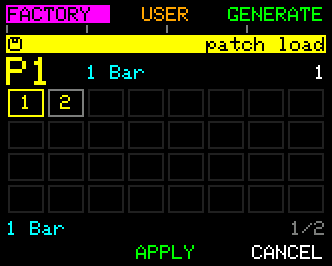
The body here is a grid of all 32 link slots, not the belt. This is the screen for comparing whole chains, and a belt only ever shows the neighbourhood of one playhead - you could not tell a four-link chain from a twenty-link one without scrolling it. Everything around the body is the same as on the chain screen itself.
| Function | What it does |
|---|---|
| FACTORY | Browse the built-in arrangements. |
| USER | Your own sixteen saved chains (see SAVE, below). |
| GENERATE | Rolls a random chain. Every rotate of the CONTROL Knob rolls a fresh one. |
| APPLY | Keep the previewed chain and return to Patch Chain Mode. |
| CANCEL | Returns without applying the new chain. |
With FACTORY armed, rotate the CONTROL Knob to browse the eight built-in arrangements; with USER armed it browses your sixteen slots. Either way the number shows in the header.
Everything previews live: if the sequencer's running you'll hear the arrangement immediately.
SUGGEST turns the chain on. Previewing engages the chain, so a chain that was OFF when you entered the browser will be ON when you APPLY. One whole browse is a single UNDO step.
Saving a chain
On Advanced Mode, press SAVE to store the current chain to one of 16 slots.
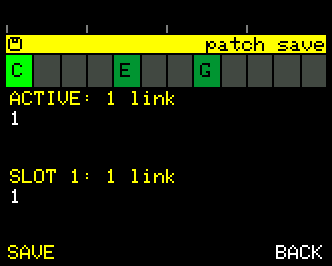
The screen shows two summaries:
- ACTIVE - the chain you're about to save
- SLOT - the target save slot.
The summary shows the chain's link count and the first few patches.
Rotate the CONTROL Knob to pick the target slot.
Press SAVE, then YES to commit, or CANCEL to back out.
Saved chains reappear under the USER source when you press SUGGEST.
Saved Patch-chains are device-wide. Unlike saved chord chains, which pool per bank, the 16 patch-chain slots are shared across every bank - so a chain you like is available everywhere. It'll still only point at the resident bank's 8 patches, though, so loading a chain built for Bank A into Bank C gives you Bank C's patches in Bank A's arrangement.
Capturing a chain
Press CAPTURE for Patch Chain Record.
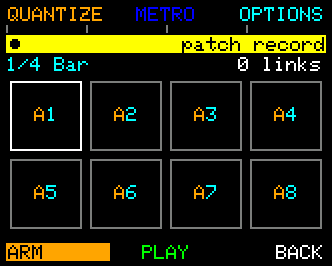
Patch Chain capture works almost identically to Chord Chain Capture (Chapter 8).
Here the parameter knobs (1-8) are your input - pressing knob n chooses patch n, the way you'd play chords into a chord-chain capture.
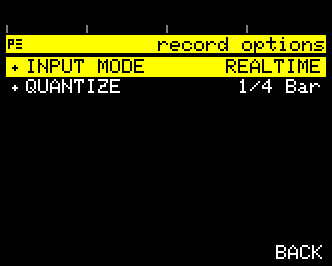
Two ways to record (set under OPTIONS):
- Step Record - press patches one at a time; each press adds a link.
-
Press the same patch again and it extends the current link rather than adding a duplicate.
-
Realtime - arm, then play patch changes against the running sequencer.
- UNA quantises each change to the grid. Optionally start with a one-bar metronome count-in. If the sequencer was stopped, only the click plays during the count-in and the tracks come in from the top on the downbeat.
When you finish, the captured chain becomes the bank's active chain, engaged and ready to play.
Turning it off by hand
If a chain is running and you load a patch manually, the chain switches off. So a manual load always wins; re-engage it with ON (button 5) in Patch Chain Mode when you want it driving again.
Patch chains and chord chains happily run at the same time - the patch chain swaps patches while each patch's own chord chain does its thing.
On the Tracks screen, when both are active you'll see two thin strips stacked at the top: the patch-chain strip above, the chord-chain strip below, each with a marker creeping across the current link. Home carries the chord-chain strip alone.
How Patch and Chord Chains interact can be controlled with the Patch Chain Keep Chords setting in the MENU (see Chapter 17).
Backup - Midicake CONNECT
For backing up patches, sharing them with another UNA owner, or pulling a curated library from a sound designer, use Midicake CONNECT - a web app at connect.midicake.com.
Plug UNA into your computer with a USB-C cable, open the page, and CONNECT can read out your patches, write new ones in, and export individual patches or whole banks as files.
Backing up before a firmware update is recommended - see Chapter 18.
CONNECT itself has its own documentation; this manual just points you at it.
Worked Recipes - for Patches
The "save before you experiment" recipe. You like the patch you're on but want to try a wild Modulate setting. Quick press CONTROL Knob → PATCHES. Tap the CONTROL Knob for the tools, then COPY. Rotate CONTROL to a fresh slot. APPLY → YES. Wait for the copy progress bar, then load the copy: APPLY. Experiment freely, the original is safe.
The "roll it back" recipe. You've been experimenting and want to snap the patch back to how it was when the bank loaded. Quick press CONTROL Knob → PATCHES → SUGGEST → turn the CONTROL Knob to REVERT → APPLY. The whole patch returns to its bank-load state.
The "name it before you forget" recipe. From PATCHES, highlight the patch you just built. Tap the CONTROL Knob for the tools, then NAME. Use the CONTROL Knob and the ABC / abc / 123 / *#! character-set selector to type "VerseA1" or whatever. APPLY.
The "set-list bank" recipe. In Patch Load, press BANK until you are on Bank C, say. Now tap the CONTROL Knob for the tools, and for each slot: pick it with its own PARAMETER Knob, press NAME, and rename it to your song titles in playing order (C1 = Opener, C2 = Song Two…). The layer stays put between renames, so it is press-knob, NAME, type, APPLY, and on to the next. On stage, you only have to remember which bank you're in and the slot numbers; CONTROL + PARAMETER Knob n gives the fastest possible song jumps within the bank.
The "choreograph the arrangement" recipe. Build your song's sections into slots of one bank - for example: B1 = intro, B2 = verse, B3 = chorus, B4 = bridge. From Patches, press CHAIN → CAPTURE, arm in Step Record, and quick press the parameter knobs in arrangement order (e.g. 1, 2, 3, 2, 4, 3…), giving each the length you want with the TIME control. END the capture - the chain is engaged automatically, and button 2 will read ON. Press BACK to return to Patch Load and press PLAY there. UNA now plays the whole arrangement, switching patches with each link. Grab a patch by hand at any point to break out; return to Patches → CHAIN and press ON to hand control back to the chain.
The "live and safe" recipe. For a gig where you want to move parameters without touching your saved patches, engage Performance Lock (Menu → BIOS → PERF LOCK → ENABLE). Nothing writes to storage until you power-cycle UNA, and the padlock in the breadcrumb bar tells you it is on. Save anything you want to keep before you engage it - it cannot be switched off again.
The "back it up monthly" recipe. Plug UNA into your computer. Open connect.midicake.com. Click Backup. Save the file to wherever you keep your projects. Do this before any firmware update.