Chapter 17 - Settings (Globals)
A Global is a device-wide setting that belongs to UNA as a whole, rather than to the patch you're currently on.
MIDI routing, keyboard split, the click-on-live-play preference - all of these are things you set once for your particular rig, and they persist across every patch you load.
This chapter documents the settings that live in the Menu, plus the BIOS Mode, where reset and diagnostic actions live. If you're new to UNA, most of the defaults will already suit you.
Getting to the Menu
From Home, hold the CONTROL Knob and press MENU (button 4).
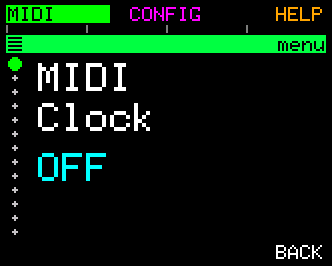
Inside the Menu there are the following button assignments:
| Function | What it opens |
|---|---|
| MIDI | MIDI settings. |
| CONFIG | Playback and behaviour settings. |
| HELP | A short explanation of the setting you are on. See below. |
| BIOS | System-level actions: resets, MIDI log, memory dump. See below. |
| BACK | Return to the screen you opened the Menu from. |
Select a category, then:
-
Rotate the CONTROL Knob to step through the settings.
-
Press-and-rotate the CONTROL Knob to change the value of the selected setting.
Every edit saves immediately.
The music keeps playing throughout; you can adjust settings mid-performance without stopping.
The MIDI menu
1. MIDI Clock
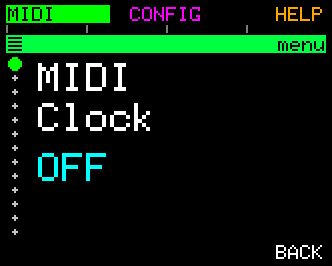
Controls how UNA handles MIDI clock - the steady 24-pulses-per-quarter-note timing signal that keeps tempo locked between devices:
- OFF - UNA ignores incoming clock and sends none of its own. It keeps its own internal tempo.
- IN - UNA slaves its tempo to incoming clock. A DAW or drum machine sets the pace; UNA's local tempo edits are ignored while clock is arriving.
- OUT - UNA streams clock out alongside its notes, so other gear can lock to UNA's tempo.
2. MIDI Transport
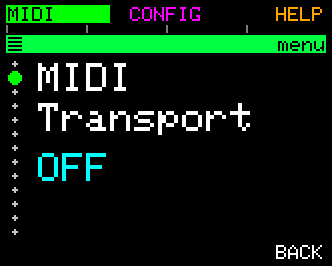
Controls how UNA handles MIDI transport - the Start, Stop and Continue commands that begin and end playback:
- OFF - UNA ignores incoming Start/Stop/Continue and sends none of its own. You start and stop UNA locally.
- IN - UNA follows incoming transport. A DAW's Play starts UNA; its Stop stops UNA.
- OUT - pressing Play on UNA sends Start; stopping sends Stop, so connected gear starts and stops with UNA.
Clock and Transport are independent, so you can mix them: Clock IN + Transport OFF locks UNA's tempo to the master while you start and stop it by hand; Transport IN + Clock OFF follows the master's Start/Stop but runs UNA on its own tempo; Clock OUT + Transport OFF drives free-running gear that only needs a tempo reference. Chapter 16 has the full sync behaviour reference, including working scenarios for all possible combinations.
3. MIDI Input Channel
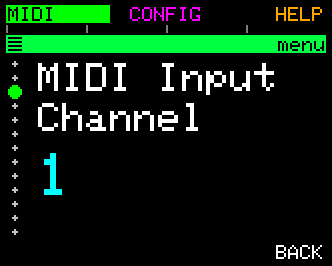
Which MIDI channel UNA listens to on its inputs. Range: OFF, 1-16, OMNI.
- OFF - ignore MIDI input entirely.
- 1-16 - accept only messages on the selected channel.
- OMNI - accept messages on any channel.
Most keyboards default to channel 1, so 1 is usually right. Prefer a specific channel unless you have a single keyboard and nothing else on the wire: this setting is what tells UNA which notes are yours, and items 4 and 5 below both act only on that channel. OMNI collapses the distinction - every note becomes your playing, so a second keyboard or a DAW track can no longer pass through untouched, and the solo settings will re-channel it along with your own.
4. Thru Track Mode
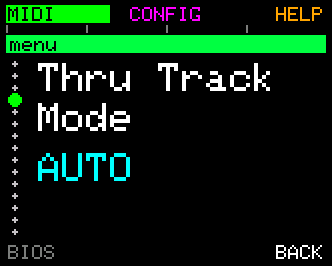
How MIDI notes you play into UNA are echoed to the outputs while you play. Notes only, and only on the MIDI Input Channel (item 3) - traffic on any other channel is another instrument passing through and is not affected by this setting.
- OFF - UNA captures your notes silently. Useful if your keyboard is already going straight to your synth via another path.
- AUTO - UNA echoes your playing only when the Listen toggle is off (so you hear yourself soloing, but chord captures don't leak through).
- ON - UNA always echoes your playing. Simplest wiring for a single-cable rig.
MIDI Thru (item 5) is the outer gate: if it is not passing notes, none of these do anything.
5. MIDI Thru
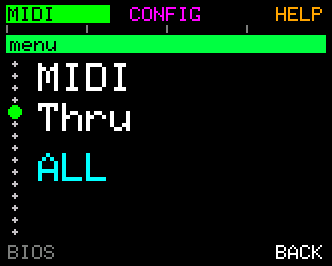
Which kinds of message may leave UNA at all, on any channel and any port. The master gate.
- OFF - nothing passes through, notes included.
- NOTES ONLY - notes pass; CC, pitch bend, aftertouch, Program Change and clock are blocked.
- NOTES + CC - also passes CC, the pitch wheel and channel aftertouch.
- ALL (default) - also passes Program Change and incoming clock and transport.
Set this to NOTES + CC when a DAW is your clock master and you don't want UNA forwarding clock, transport or Program Change to your synths - your playing and your wheels still get through. See Chapter 15 for the full picture of how it interacts with Thru Track Mode.
6. MIDI Output - Port Routing
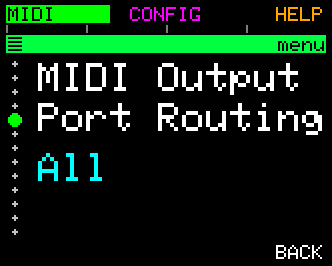
The master enable mask for UNA's outputs.
Turns individual output ports on and off at the top level, above the per-port routing that follows. See Chapter 15 for details.
7. TRS OUT A Routing
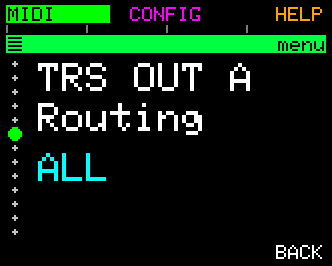
The tracks that go out of MIDI Out A.
Each track (Melody, Chord, Bass) can be independently enabled on this port. Combined with the per-track MIDI channels, this lets you route different tracks to different synths.
8. TRS OUT B Routing
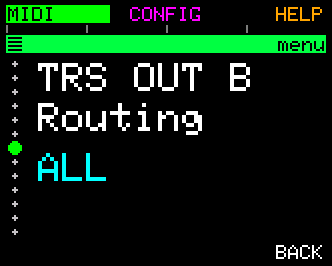
Same as OUT A, but for MIDI Out B.
A common pattern: OUT A gets Melody and Chord for a poly synth; OUT B gets Bass alone to a mono bass synth.
9. Keyboard Split
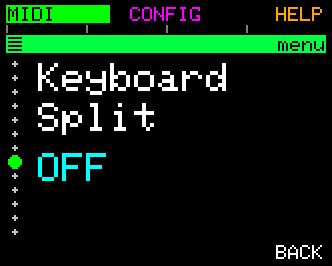
Splits the keyboard into two zones - one drives chords, the other drives melody/solo. This is the in-place editor; the same setting has a screen of its own on the Mixer's Advanced Mode under KEYSPLIT, where SIDE, CLEAR and CHANNEL (the MIDI Input Channel) are buttons and CANCEL backs out of a change you did not mean. Selection options are split between:
- OFF
- Down from split point for chord input
- Up from split point for chord input
Chapter 15 has the full split behaviour reference.
Handy shortcut:
While Keyboard Split selected, play a note on your keyboard. UNA snaps the split point to that note.
Much faster than rotating the CONTROL Knob to hunt for the right value.
10. CC Input Channel
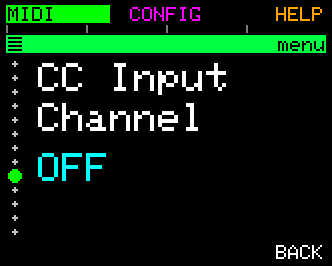
Sets the Input MIDI Channel for UNA's remote-control CC map - (The hardcoded CC numbers that let a MIDI controller trigger panel actions).
-
OFF (default) - external CCs are ignored
-
1-16 - exact match
- OMNI - accept on any channel
Full map in Chapter 15.
This is not the general MIDI CC filter. Modulators with a MIDI CC source each carry their own channel (set via LEARN or the Assign screen in Chapter 12), and the sustain pedal is gated by its own Sustain Pedal setting.
11. CC Input Toggle
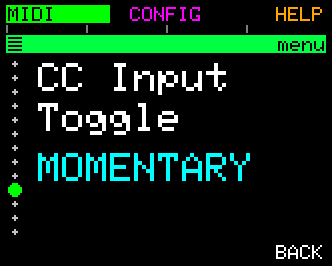
Tells UNA whether your external controller sends:
- Momentary buttons (127 on press, 0 on release - piano keys, drum pads)
- Latching buttons (127, then 0 on the next press - many footswitches and DAW toggle buttons).
This setting decides how the input is handled.
- MOMENTARY (default) - toggles flip on press and release.
- LATCHING - toggles flip on every other press.
If a toggle only reacts to every other press, switch to LATCHING; if it only holds while you press, switch to MOMENTARY.
Full detail in Chapter 15 - Input and Controller CCs.
Every remote action is edge-detected, so a swept knob or fader will work with either setting.
12. PC Input Channel
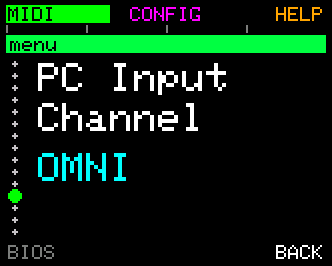
Sets the MIDI Channel UNA listens on for Program Change, which selects a patch in the current bank: Program Change 0-7 loads patches 1-8 (many controllers number these 1-8). Higher values are ignored.
- OFF - Program Change is ignored
- 1-16 - exact match
- OMNI (default) - accept on any channel
Program Change is ignored in BASIC mode, which has no patches.
13. MIDI Out On Live Play
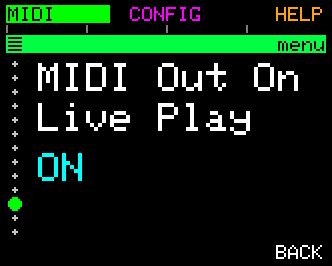
Governs whether Live Play (holding a key with the sequencer stopped) also broadcasts Start / Stop / Clock to your other gear.
- ON (default) - Live Play behaves like a real Play: connected gear locks in as you hold notes.
- OFF - Live Play stays private. Connected gear sits still until you press Play properly.
Set to ON when you want a drum machine to run whenever your fingers are on the keys; OFF when Live Play is for private practice or arrangement noodling.
IMPORTANT NOTE:
MIDI Clock and MIDI Transport, must be set to OUT for this to function.
AND Live Play must be enabled.
14. MIDI Loop Protection
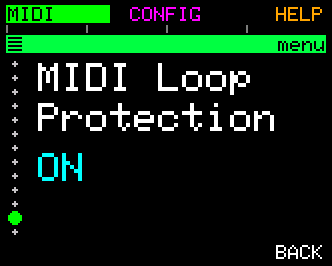
A safeguard against MIDI feedback loops. It decides whether thru'd input may be echoed back out of the same port it arrived on.
- OFF (default) - every port passes its input straight back out, letting UNA work as a plain MIDI thru box on all three. A keyboard on TRS IN reaches a synth on TRS OUT, and a keyboard on USB-C is thru'd back out USB-C.
- TRS ONLY - TRS input is not echoed back to the TRS outputs. Only needed if you have deliberately cabled a TRS OUT back round to UNA's TRS IN.
- ALL PORTS - no port echoes its own input. Use this when a computer is patched to send UNA's output back to its input.
UNA has separate TRS IN and TRS OUT A/B sockets, so passing TRS input out of TRS is ordinary MIDI thru, not feedback. A loop can only form if you physically patch an output back to the input. That is why this is off by default.
Input can always cross to the other ports regardless; this setting only affects the round trip. It gates all thru traffic - notes, CCs, Program Change and clock - not just notes.
Changing this while a key is held sends an all-notes-off to any port it has just closed, so no note is left hanging.
15. Live Play Sustain (CC64)
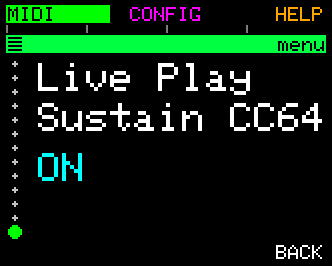
Lets a sustain pedal latch Live Play, similar to how a piano's sustain pedal holds notes after you lift your hands.
When UNA is running from held keys (Live Play - Chapter 16), press and hold a sustain pedal (MIDI CC64) and UNA keeps running even after you release the keys. So you can move between chords without the sequencer stopping in the gaps.
Release the pedal and playback stops, unless you're still holding keys, in which case Live Play simply carries on.
- ON (default) - a CC64 sustain pedal latches Live Play as described.
- OFF - CC64 is ignored; Live Play stops the moment you release the keys.
Playing a new chord while the pedal is held updates UNA's harmony live, exactly as if you'd pressed Play. The pedal is read on the same channel as your notes (the MIDI Input Channel, item 3 above).
The CONFIG menu
1. Velocity Sensitivity
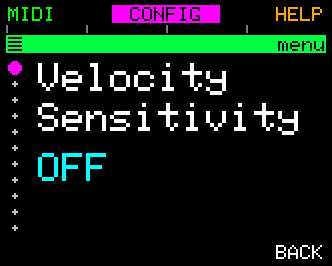
ON / OFF (default OFF).
-
When on, the velocity you play is carried into UNA's output, so playing softly makes UNA play softly.
-
When off, incoming velocity is ignored and each track uses its own velocity setting instead.
When ON, the import velocity modulates the track velocity, it doesn't override it; so your velocity stepper patterns and Mixer settings are maintained.
Turn it on if you want your touch to come through; leave it off if your keybed feels twitchy.
2. Accents Amount
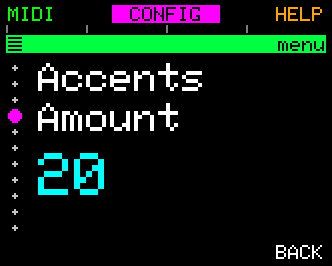
How much louder an accented step plays than a normal step.
Applies to any step marked as an Accent (Chapter 9).
The value is a velocity boost, adjustable from +10 to +50 (default +20), with a final MAX setting that pushes accented steps to full velocity (127).
3. Time Sort Order
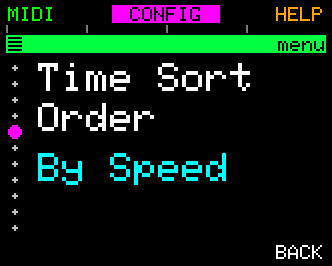
The order in which the Time parameter values are presented.
- By Speed (default): orders the values by how fast a pattern sounds, interspersing straight, dotted and Triplet notes.
-
[1, 2D, 2, 4D, 2T, 4, 8D, 4T, 8, 16D, 8T, 16, 32D, 16T, 32]
-
By Type: groups the values into two sets, Triplets and Dotted on the left, Straight on the right.
- [16T, 32D, 8T, 16D, 4T, 8D, 2T, 4D, 2D, 1, 2, 4, 8, 16, 32]
- This allows quick doubling of halving of track playback speed.
4. Thru Track Channel
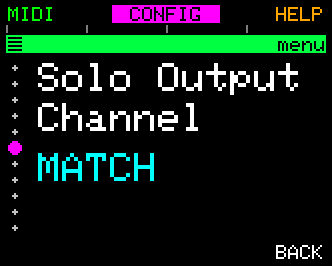
Where your own playing is routed on the MIDI outputs - anything arriving on the MIDI Input Channel that UNA echoes.
- MATCH - echoes on the same channel you're playing on.
- 1-16 - forces the solo output to a fixed channel, regardless of what the input channel is.
- Useful when your solo-voice synth expects a specific channel.
- TRACK - sends your playing on the MIDI channel of the selected track, so you play along on that track's synth.
This covers both ways of soloing: with Listen off, where the whole keyboard is yours, and with Listen on and a Keyboard Split set, where your free hand solos while the other hand feeds UNA chords. In both cases your playing lands on the channel chosen here.
Setting this moves your thru'd notes off the input channel. If you play on channel 1 with Thru Track Channel set to 12, your synth hears you on 12 - so anything still listening on channel 1 goes quiet. That is the setting working, not a fault. If your playing seems to have stopped passing through after you set this, check the channel your synth is receiving on before anything else (Chapter 19).
Expression follows your notes here too: CC, the pitch wheel and channel aftertouch arriving on the MIDI Input Channel are re-channelled onto the solo channel with them, so a filter sweep or a bend lands on the same synth as the note it belongs to. Program Change is not re-channelled.
5. Thru Track Quantize
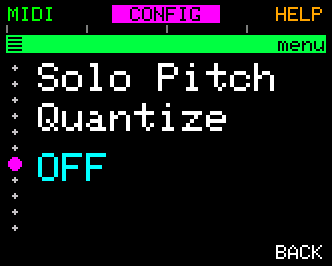
Auto-corrects your solo notes to fit the current harmony. Five modes:
- CHROMA - pass all 12 notes through unchanged - no snapping. The default.
- CHORD - snap to the current chord tones only.
- PENTA - snap to the pentatonic scale of the current key.
- SCALE - snap to the full diatonic scale of the current key.
- BLUES - snap to the minor blues scale of the root, blended with chord tones.
This is UNA's "no wrong notes" promise. Set to CHORD or PENTA when you're playing over a progression and want your solo to sit in it automatically. It is also on Performance Mode's MIXER row, knob 8, and on the Mixer's Advanced Mode as QUANTIZE (Chapter 6).
Like Thru Track Channel, it applies to your playing whether Listen is off or you are soloing with your free hand over a Keyboard Split. Splitting the keyboard is where it is most useful: the hand feeding UNA its chords sets the harmony that the other hand is snapped to.
6. Live Play
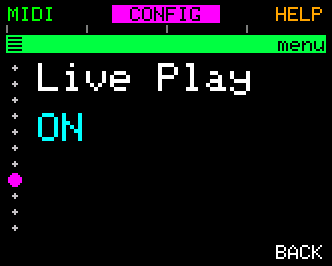
Gates whether external MIDI keyboard notes can start and drive the sequencer via Live Play (Chapter 5).
- ON (default) - holding notes on your keyboard runs the sequencer for as long as you hold them, exactly as described in Chapter 5.
- OFF - Live Play is disabled. Incoming keyboard notes still set the shared chord (so the Melody and Bass tracks still follow your playing harmonically), but they no longer start or drive the sequencer. Only manual Play (the PLAY / STOP control) starts the transport.
Turn OFF when you ONLY wish to play over UNA - soloing against a running sequence - without your keyboard also acting as the start/stop trigger.
OFF is useful when you want to set the chord but not hear it play.
Also gates the CC64 sustain-pedal start (item 15 in the MIDI menu): with Live Play OFF, the pedal won't start the sequencer either.
7. Track Mutes
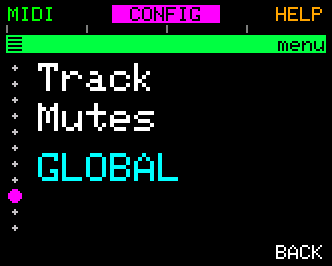
Where a track's mute state is remembered.
- Global (default) - mutes are device-wide. Mute the Bass Track and it stays muted as you switch patches. The mute lives outside the patch.
- Per Patch - each patch remembers its own mutes, and loading a patch restores them.
Global is the better default for live use: you drop the bass out for a breakdown and it stays out, whichever patch you move to. Choose Per Patch when a patch's mutes are part of its arrangement - a verse patch with no bass, a chorus patch with everything in.
8. Track Channels
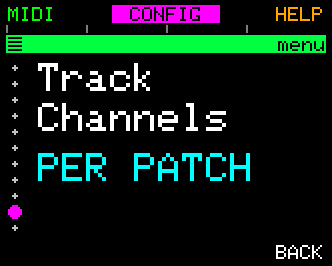
Where a track's MIDI output channel is remembered.
- Global (default) - the three track channels are device-wide and shared by every patch. Editing CHANNEL changes the shared channel; the channels stored in your patches are left untouched.
- Per Patch - each patch stores its own channel for each track (the CHANNEL track parameter, Chapter 7). Loading a patch restores its channels.
Switching to Global copies the current patch's channels into the shared values, so nothing re-channels at the moment you switch. Switching back to Per Patch re-reads each patch's stored channels.
Global suits a fixed studio routing - the synth on each channel never changes, so every patch should address the same three channels no matter what was saved in it. Per Patch suits patches that address different gear.
9. Patch Chain Keep Chords
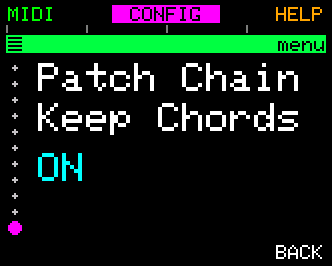
Governs what happens to the chord chain when a patch chain switches patches for you (Chapter 14).
- ON (default) - the chord chain that's currently playing keeps running across the patch change.
-
The patches change the sounds and the parts; the progression underneath carries on.
-
OFF - each patch brings its own chord chain with it.
- The progression changes when the patch does.
Leave it ON when a patch chain is choreographing a single song over one progression. Turn it OFF when each patch in the chain is a different song.
10. Startup Screen
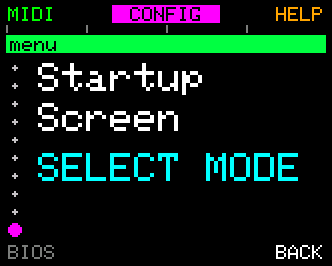
What UNA shows when you power it on.
- SELECT MODE (default) - the SELECT MODE screen, every time: choose BASIC, EXPERT or TUTORIAL and press GO.
- BASIC - start straight in BASIC, with no question.
- EXPERT - start straight in EXPERT, with no question.
The setting takes effect at the next power-on; it does not switch modes now (use MODE on Home for that - hold CONTROL, button 3). Both BIOS resets put it back to SELECT MODE.
HELP
HELP (button 3) explains the setting you are on. It fills the screen with the setting's name and a short description of what it does and what each value means.
- BACK (button 6) closes it and puts you back on the same setting. The other buttons do nothing while it is open.
- Turn the CONTROL Knob to page, if the description runs to more than one page. Nothing you do with the CONTROL Knob changes a value while HELP is open.
- MIDI keeps flowing, but a note you play does not set the Keyboard Split while HELP is open.
For the guided tutorial (Chapter 3), hold the CONTROL Knob and press HELP (button 6), then TUTORIAL (button 1).
What lives elsewhere
Not everything device-wide lives in the Menu. Some settings have their own home:
- Tempo -Press and Rotate PARAMETER Knob 1 (on Home). Persists as a Global.
- Time signature - Metronome page, TIME SIG.
- Metronome on/off - Metronome page, ON/OFF.
- Track mute state - the Mixer (Chapter 6). Saved as Global by default.
- Current bank / current patch - automatically tracked; loaded on boot.
- Voice Mode (Poly / Mono) - set per track in each track's PARAMS menu, not in the Menu.
- Poly lets a track sound multiple notes at once; Mono forces one note at a time. Saved per patch.
BIOS - system actions
There's one more layer beyond the Menu: BIOS Mode, which holds UNA's system-level actions - reset, factory reset, MIDI activity log, and a memory dump.
Getting in
From the Menu, press BIOS (button 4). The label is deliberately dim - BIOS is a service screen rather than something you reach for while playing - but the button works exactly like the others.
You can also boot straight into BIOS by holding the CONTROL Knob while powering on. Useful if there is ever an issue, and you want to reach the reset without going through the menus first.
The BIOS menu
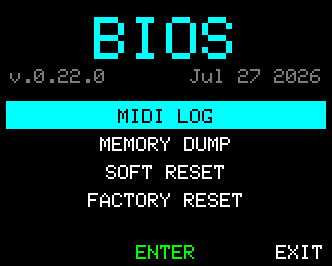
Five items, selected by rotating the CONTROL Knob. Button 5 runs the item and reads ENTER, RESET or ENABLE to match it.
EXIT returns to the Menu you came from - or to the Home screen if you booted straight into BIOS.
| Item | What it does |
|---|---|
| MIDI LOG | Live monitor of MIDI events flowing through UNA. Useful when diagnosing routing problems. |
| MEMORY DUMP | Read-only view of every Global's current stored value. For advanced troubleshooting; not very interesting. |
| SOFT RESET | Restores all Global settings to factory defaults. Patches are preserved. |
| FACTORY RESET | Restores Globals and erases all patches. Everything back to as-shipped. |
| PERF LOCK | Engages Performance Lock: autosave stops and nothing is written to storage until UNA restarts. See Performing without autosave below. |
All three actions ask for confirmation before running - YES commits, NO backs out.
Which reset do I want?
- SOFT RESET - use when a MIDI routing or a Menu setting has got out of hand and you want the defaults back without losing your work. Patches survive.
- FACTORY RESET - when you want to start over from scratch. Everything is erased.
Back up your patches to Midicake CONNECT first (Chapter 14) if you want to keep them.
Performing without autosave
UNA autosaves everything as you go. On stage, that means an experiment during a set overwrites the saved patch.
PERF LOCK turns autosave off for the rest of the power cycle. Select it, press ENABLE and confirm. The row then reads PERF LOCK ON and a small padlock appears at the right of the breadcrumb bar on every screen, so you can always tell at a glance.
While it is on you can move any parameter, load any patch and switch banks freely; a power cycle returns UNA to exactly the state it was in when you engaged the lock, including which patch and bank were selected.
It cannot be switched off
Only restarting UNA releases Performance Lock, so it can't be knocked off by accident mid-set. Save anything you want to keep before engaging it.
Two things still write, because they never went through autosave: the BIOS resets above, and saving a reset template (Chapter 14). Edits made before you engaged the lock are not discarded - they land normally.
The MIDI Log
MIDI LOG shows recent MIDI events in a table - index, command, channel, data byte 1, data byte 2. Colour tells you direction (incoming vs. outgoing). Rotate the CONTROL Knob to page through history when there's more than a screenful.
Most useful when you're wondering "is my keyboard even talking to UNA?" or "is UNA sending what I think it's sending?" - the answer will show up as a live scrolling log.
About defaults
Every Global has a default value. If in doubt, SOFT RESET in BIOS restores those defaults without touching your patches.
Cross-references
- Chapter 6 - Menu access from Home.
- Chapter 13 - Metronome & Timing, including Tempo, Time Signature, and click settings.
- Chapter 15 - MIDI, for the deep dive on routing, channels, and CC behaviour.
- Chapter 16 - Sync & Clock, for the full MIDI Clock and MIDI Transport behaviour.
- Chapter 14 - Patches & Banks, for what's not Global (patch state).