Chord Chain Sequencing
ARP enables you to create chord progressions (known as Chord Chains) of up to 32 chords.
During playback, a chord chain will automatically change the note and chord as sequenced by the chain. The chain will repeat until a new chord is entered manually (by pressing a NOTE button) or when loading a new chain.
ARP can save up to 12 chains that can be quickly edited and activated. The chains can be recalled at any time. You can also quickly load chord chains during a performance.
Each link in a chain has 4 properties that define how that link will sound and behave.
-
Chord (1-8)
-
Note (C-B)
-
Position (-12 to +12)
-
Length (1 tick to 256 bars)
These parameters enable you to create virtually any chord progression.
Editing Chains
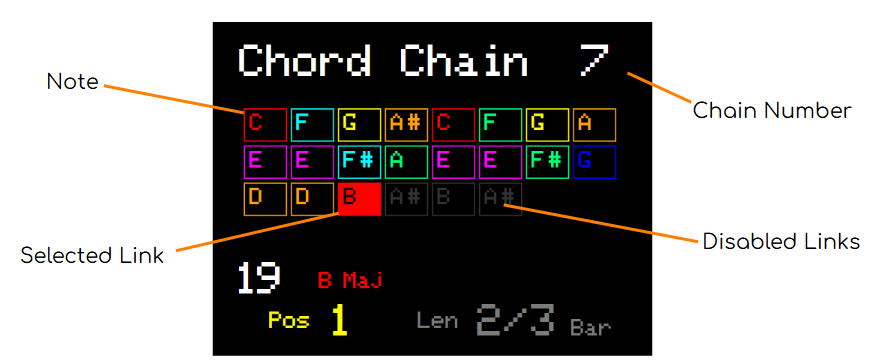
In PLAY Mode, press the PROGRAM button (KNOB control) to enter the Chord Chain Editor.
-
The first link in the chain will be highlighted
-
Select a chord by pressing a CHORD button
-
Then press a NOTE button to add a link to the chain
-
The next link in the chain will be automatically selected
-
Continue pressing NOTE buttons to add more links
-
Rotate the KNOB control to change the selected link
-
Note that this also sets the length of the chain! (i.e. the number of chord changes)
-
Be sure to select the last link before exiting the Chord Chain Editor if you want the full chain to be played
-
Press the PROGRAM button to exit the Chord Chain Editor and activate the chain.
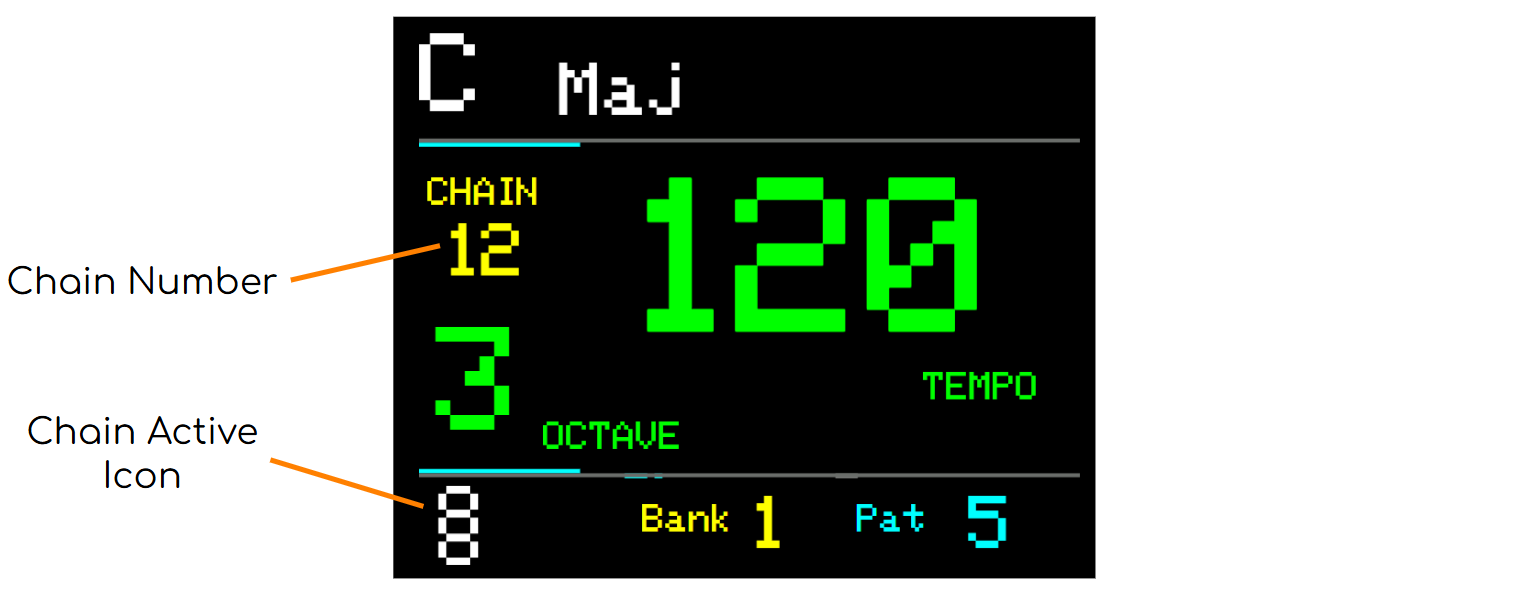
If a chain is active, an icon will appear in the bottom left of the Display.
In PLAY Mode, the Chain Number is also displayed.
On pressing a NOTE button (or playing an external keyboard key), the chain will be deactivated and the selected note/chord will play.
If a chain is active when the unit is switched off, it will be automatically activated again when ARP is switched on.
Changing a Link’s Parameters
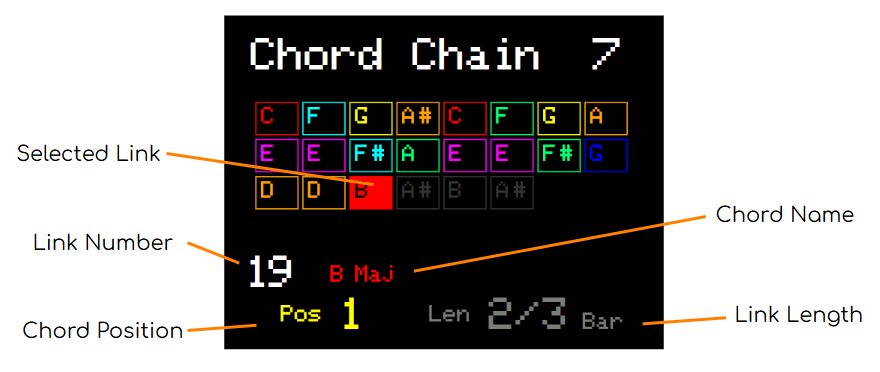
Each of the possible 32 links in a chain has parameters that control how it behaves. These allow you to make more interesting progressions.
-
Press PROGRAM to enter Chord Chain Editor
-
By default, the Position parameter is highlighted
-
Use the UP/DOWN buttons to change the position (for the selected link)
-
Press the SET button to switch between the Position and Length parameters
-
ARP’s 8 CHORD buttons are colour coded to match the corresponding chord on screen
-
You can change the Chord, for the selected link, by pressing a CHORD button
-
The Position parameter (Pos) allows you to create chord inversions (see Chord Inversions)
-
The Length parameter (Len) defines how a link will play before moving to the next link
-
By default this is 1 bar
-
-
You can also change the Note of the selected link by pressing one of the NOTE buttons
Tip. When creating a long chain, it is helpful to set the parameters of the first link before adding links as the last parameter values will be assigned to each new link.
Chain Length
Setting the length of the chain, using the KNOB control, disables any links after the selected link. These links will not play when the chain is activated, however, they are saved and can be reactivated at a later point by increasing the Chain length.
Resetting the Chain
If you wish to remove the disabled links…
-
Select the last link to be included in the chain, then…
-
Press and hold the RESET button to delete all subsequent links
To start a new chain, simply select the first link and hold the RESET Button.
Don’t forget to set your parameters before adding new chain links.
Loading Chains
You can create up to 12 different Chord Chains that will be stored and recalled later.
Any changes you make to a chain will be saved automatically and will overwrite the existing link parameters.
In the Chord Chain Editor…
-
Press the LOAD button
-
Press a NOTE button to select a chain to load
To cancel loading, before pressing a NOTE button, press the LOAD button again or PROGRAM to exit the Chord Chain Editor.
Loading a Chain that has not yet been edited will default to a one link chain.
Copying Chains
Duplicating chains is a good way to reuse an existing chain and create variations.
-
Load the chain to be copied
-
Press the COPY button
-
Press the NOTE button representing the chain you wish to copy to
Note, the existing Chain will be overwritten and this cannot be undone.
Playing the Chain
On exiting the Chord Chain Editor, the chain will automatically be activated.
On pressing PLAY, the sequencer will play the chord progression defined by the chain, starting at the first link.
The Chain will be deactivated when pressing a NOTE button. Or sending in chords via an external keyboard. See External Note Sync
TIP. When playing a chain, the global Octave will still function to shift the pitch of the chord chain up or down by 12 semitones.
Playing During Chord Chain Edit
You may enter the Chord Chain Editor while ARP is playing. Similarly, if you are in the Chord Chain Editor, you can press PLAY to start the sequencer.
However, only the currently selected link will play. This allows you to test how a chord will sound.
Tip. Scrolling through the links, using the KNOB control, will allow you to test each chord in turn, which can be useful when composing.
A Note on Deterministic Link Selection
If ARP is playing, on exiting the Chord Chain Editor, the position of the chord progression will be calculated deterministically. This means that the correct chord will be played based on the current MIDI clock tick.
For example: Imagine you have a Chord Chain with two chords that are 1 bar in length. When you exit the editor, part way through the 2nd bar, Chord 2 will be played.
Quick Loading Chains
During a performance you can activate a chain without entering the Chord Chain Editor.
You can do this in PLAY Mode at any time.
-
Hold the PROGRAM button
-
Press any NOTE button to load the associated Chain
-
Release the PROGRAM button
As the new chain is activated, the link that is played (from the chain) will depend on the current MIDI Clock Tick. (see above)
Timing the change between Chains forms part of your performance and can be used creatively to build complex song structures in real time.
For more ideas, see Appendix X - Ideas and Tips for performing with Chords and Chains