External Note Sync
A key feature of MidicakeTM ARP is its ability to track live musical performances.
In the same way that the current sequence is transposed when selecting the chord and note (see above), Note Sync samples incoming MIDI notes to transpose the whole sequence and to follow all root note, chord and key changes.
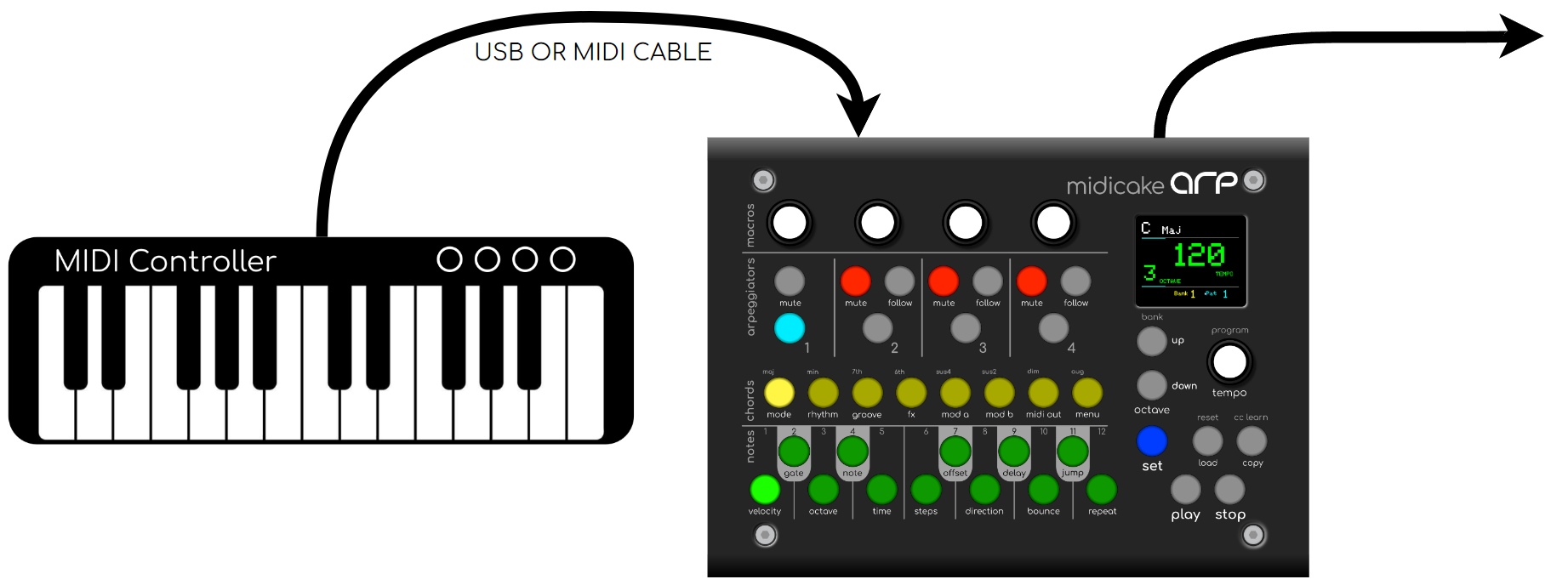
Note Sync operates by sampling all incoming MIDI note messages, building a scale from all active notes and taking the lowest note as the root note.
For example, you might play a chord progression on a keyboard and have the same MIDI notes used by ARP to build its sequences. ARP will create a sequence that matches those notes based on the parameter values defined for each arpeggiator.
Another idea might be to use a step sequencer or piano roll pattern to drive arpeggios that reflect the original pattern. There are many creative possibilities.
See also: Appendix V - MIDI Input Arpeggiation Mode Behaviour
Configuring External Note Sync
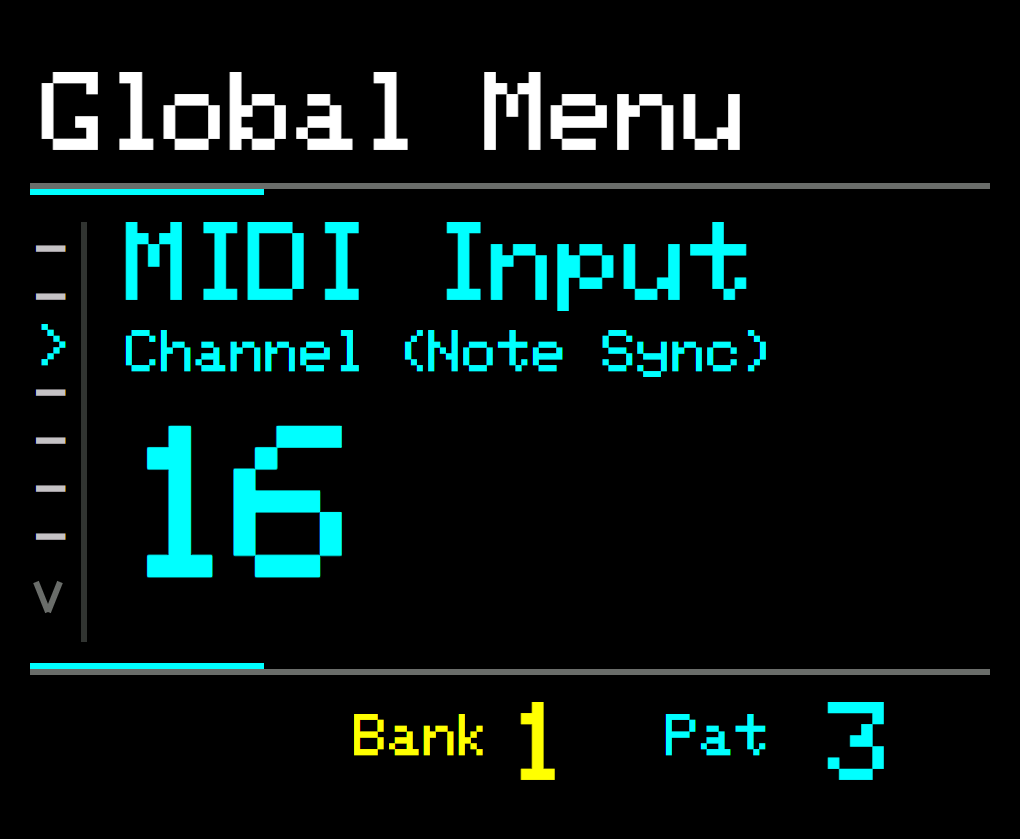
In SET Mode, use the MENU button to select MIDI INPUT CHANNEL (Note Sync)
-
Set this to match the MIDI output channel of the external controller (keyboard or sequencer)
-
All incoming MIDI notes on this channel will be used to build the sequence
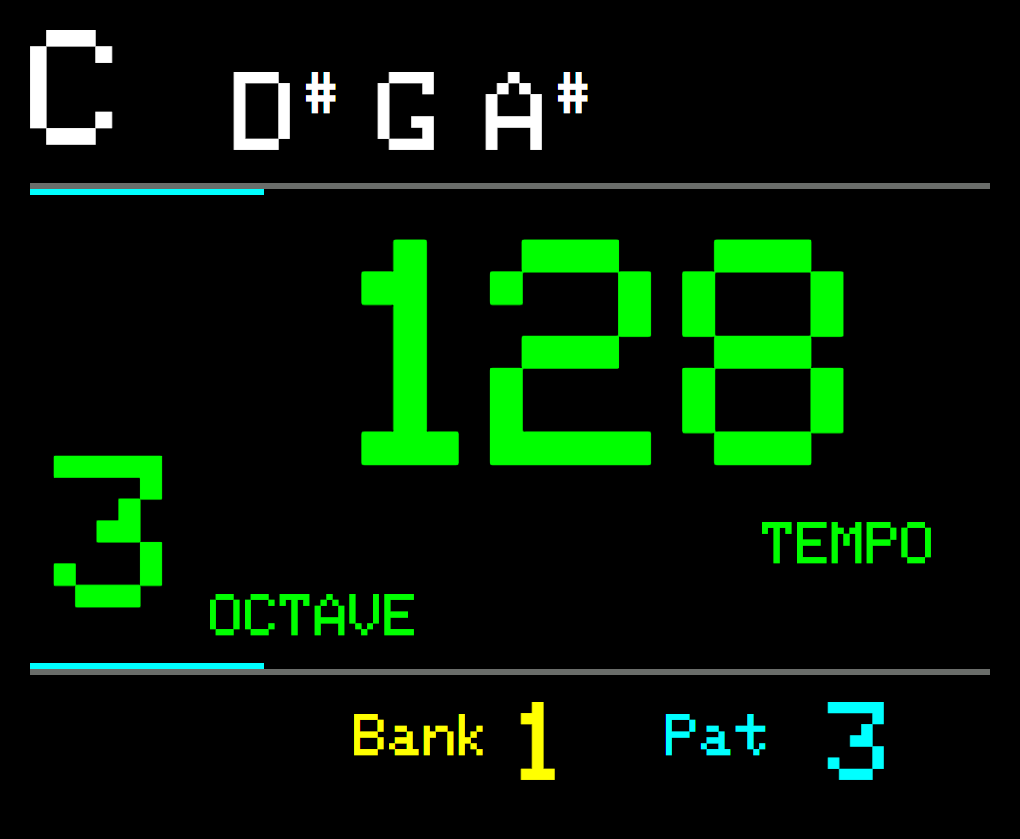
In PLAY Mode, on detecting MIDI notes, the active notes will be highlighted on the NOTE buttons and the display will show the external notes played.
Daisy Chaining
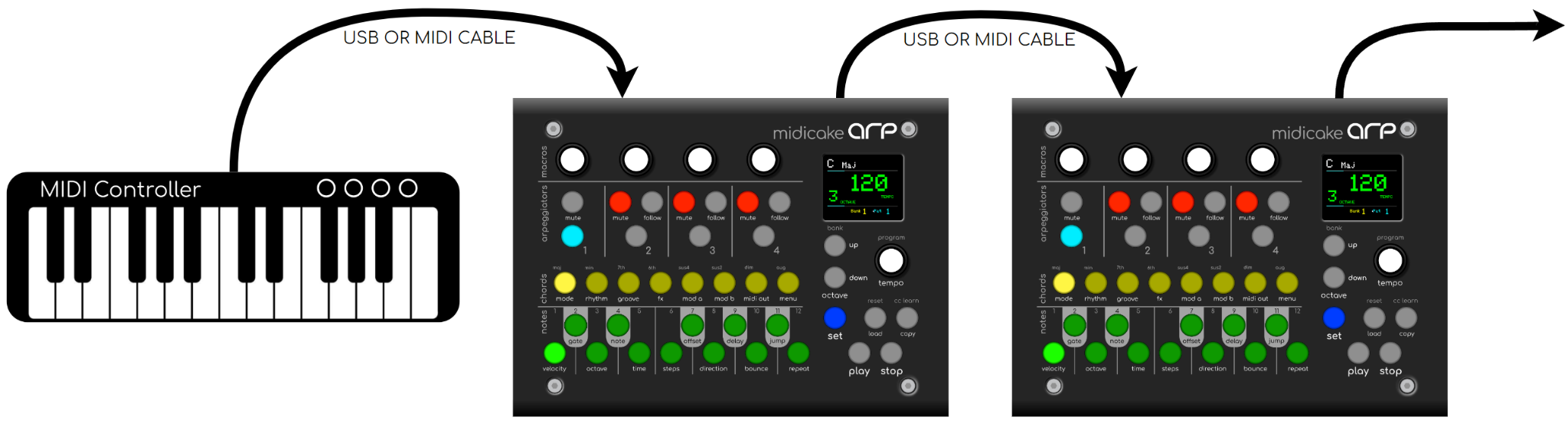
Multiple ARPs can be connected together and Note Sync can be used to harmonize the output of all arp sequences. Imagine 3 ARPs with 12 separate MIDI channels all sharing the same Root Note, Chord/Scale and Tempo and Octave.
External Note Sync
To control multiple ARPs with an external MIDI keyboard or Sequencer, configure them in the following way:
-
Set the MIDI Input Channel (Note Sync) to match the Output Channel of your MIDI Controller.
-
Do this for all ARPs
-
Set MIDI Thru to ON
Internal Note Sync
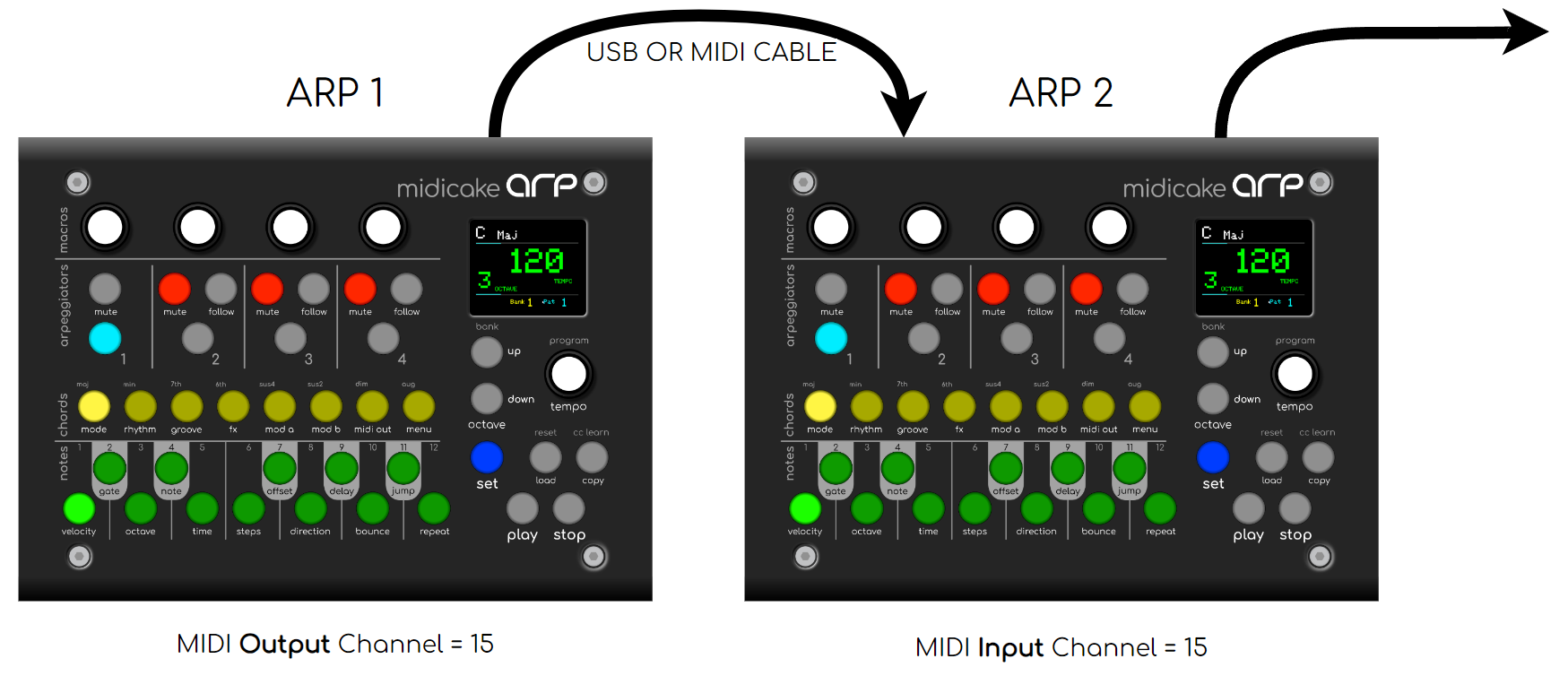
To control multiple ARPs with the note buttons of just one ARP, configure them in the following way:
-
Set the MIDI Output Channel (Note Sync) of ARP 1 to match the MIDI Input Channel (Note Sync) of ARP 2
-
Set MIDI Thru to ON
Notes
-
When using an External keyboard for note sync, internal note sync is disabled.
-
Beware of sending other MIDI notes on the same channel as ARP’s MIDI Input Channel, when daisy changing, as this may cause unexpected behaviour.
Adding an Arpeggiator to your Keyboard Synthesizer
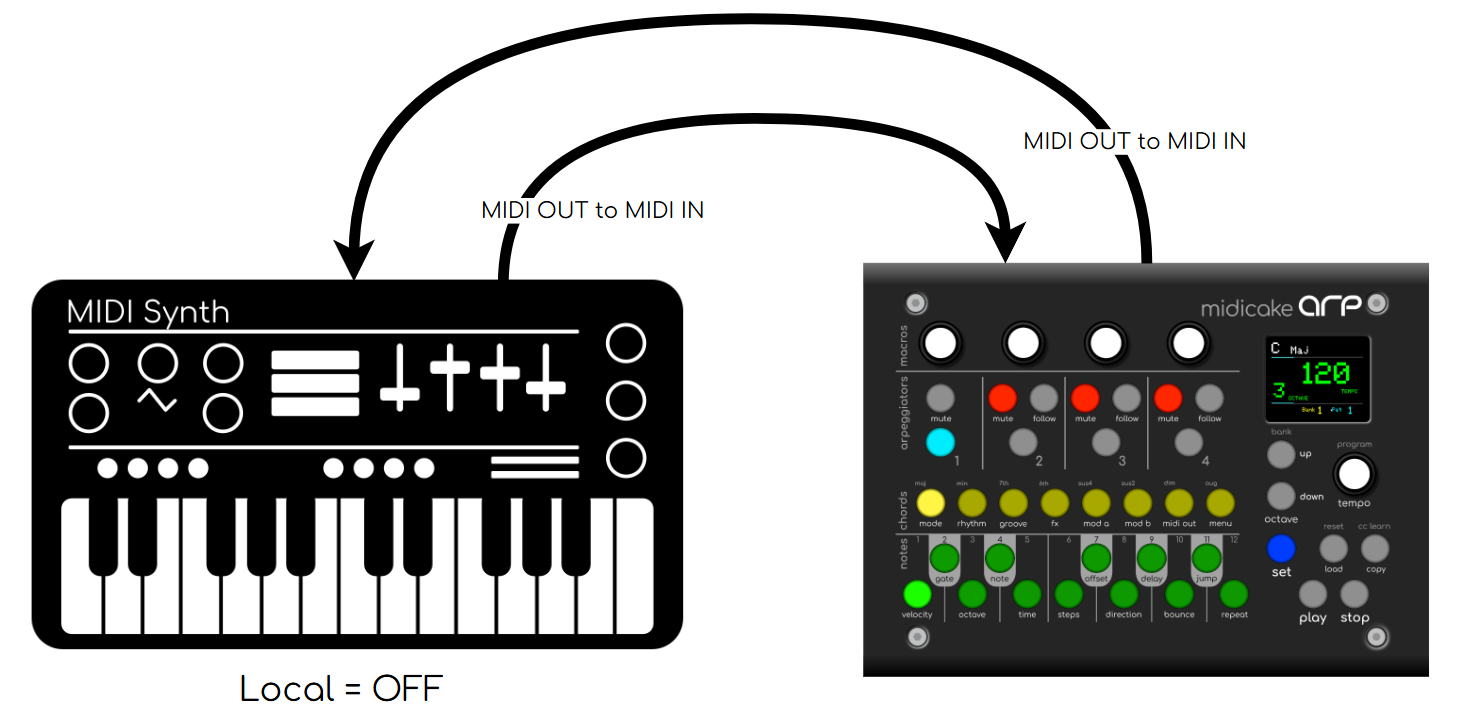
You can use ARP as an arpeggiator for your synthesizer, utilizing the synthesizer’s own built in keyboard (if the synth supports this).
You can then play the keyboard to drive ARP which in turn drives the synthesizer.
-
Set ARP’s MIDI Input Channel (Note Sync) to match the MIDI Output channel coming from your synth
-
Set the MIDI Out parameter to match the MIDI Input channel going to you synth
-
On your Synth, disable MIDI Local (to prevent the keyboard playing the synth directly.
-
You may also enable Live Play on ARP